Two things come up in every office, and neither fits a shared folder. A client has to send you forty photos, and they have no account and no wish for one. And you have to deliver a finished job, where what the client downloads next week must be what you sent today, not whatever the folder looks like by then.
Iglubox 1.11 has an answer to each, both in the web app.
File requests: a link people send files to
Right-click a folder and choose Request files…. Say what you are asking for and, if you like, set a deadline, the largest file you accept or a password. You get a link.
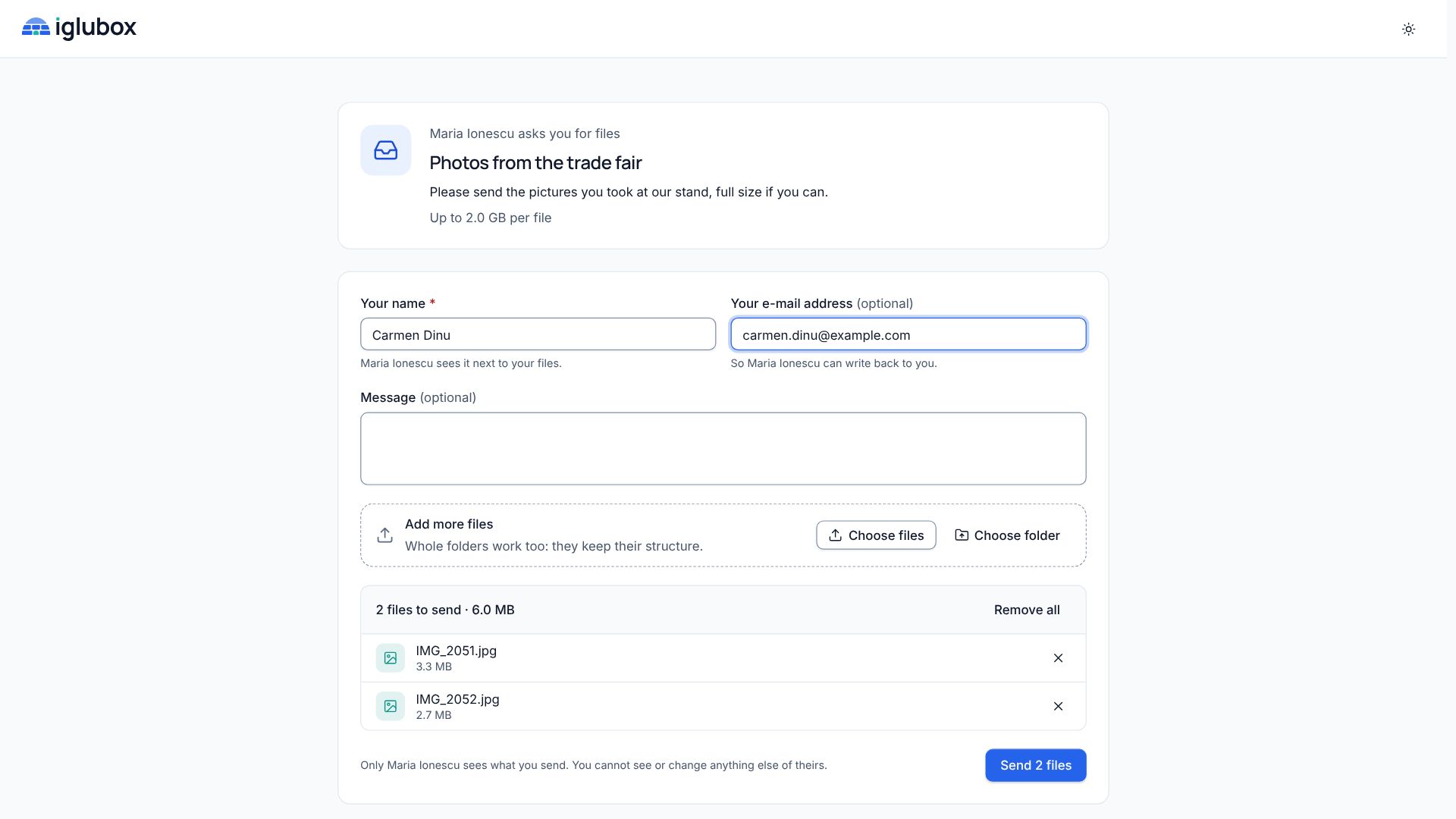
Whoever opens it sees your name, what you ask for, and a place to add files or whole folders. That is all they see: not the folder, and not what others sent.

Each person’s files arrive in a folder with their name, inside the folder you chose. Nothing replaces a file that is already there, large files go in pieces and continue after a lost connection, and you are notified when someone has finished. The request lists who sent what:
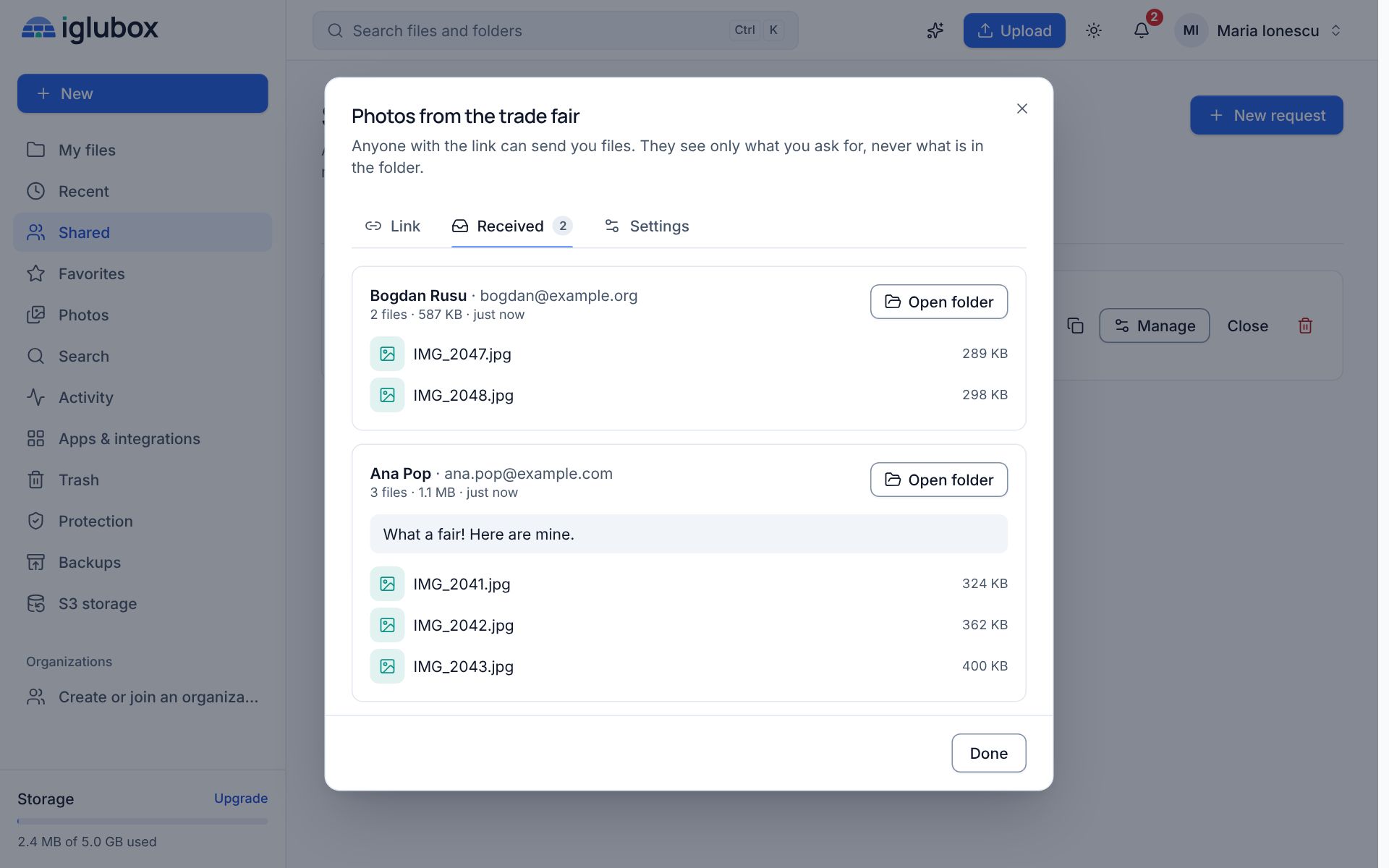
From then on they are ordinary files of yours: scanned, versioned and synced to your computer, and the history of each one names who sent it.
Transfer: a copy that stays as it was
Select files and folders and choose Send a copy…. Add a message, pick how many days, and type the addresses of the people who should get it.
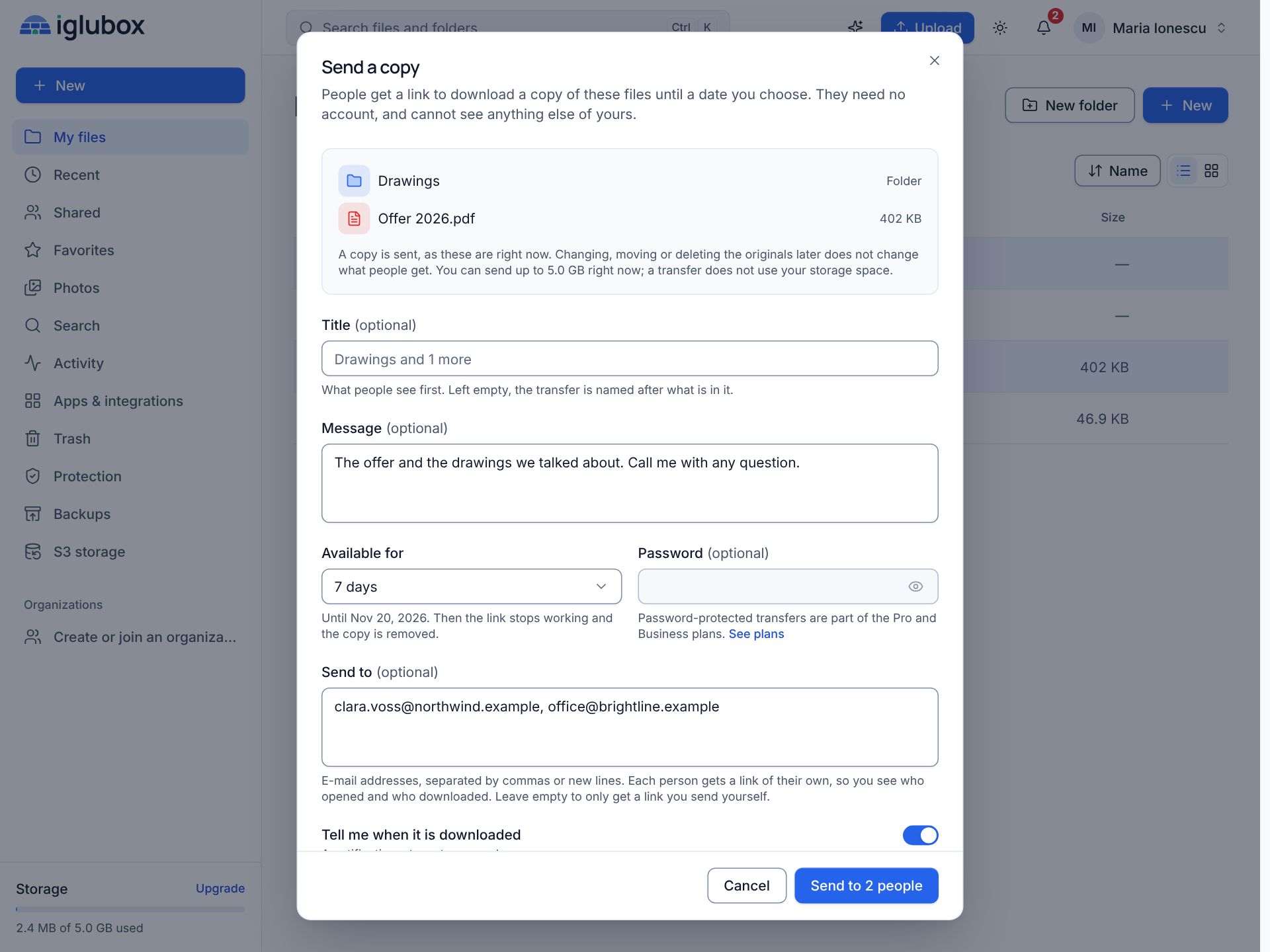
What goes out is a copy taken at that moment. Edit the originals, move them, delete them: the people you sent it to still download exactly what you sent. The copy is not stored a second time and does not use your storage space; all your transfers together can be as large as your storage.
Recipients need no account. They download one file, a folder as a ZIP, or everything:
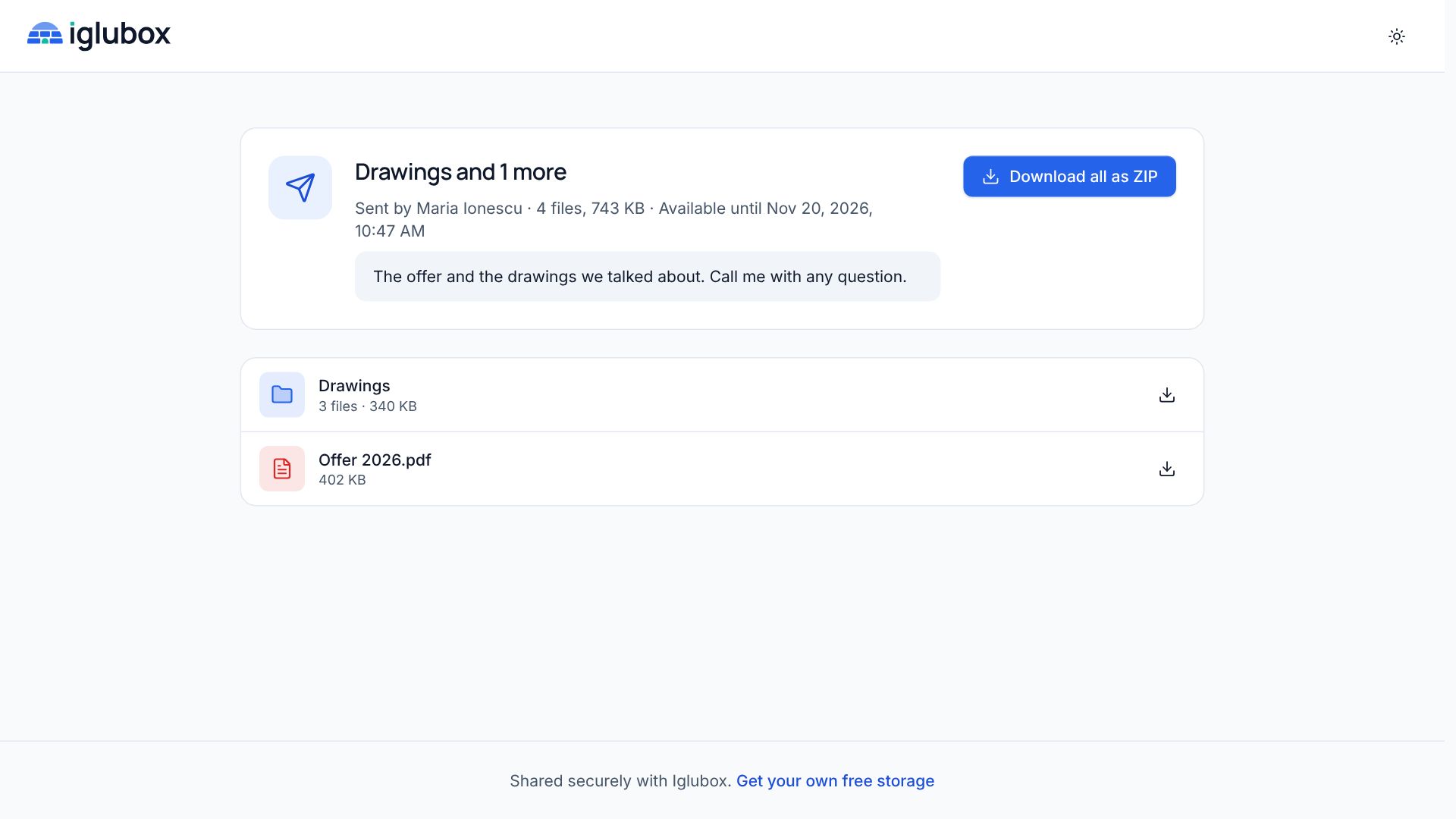
Everyone you e-mail gets a link of their own, so the transfer shows who opened it and who downloaded. After its date the link says that the transfer has expired, and the copy is removed.
Which one to use
- Someone should send you files: a file request.
- Someone should get a finished set of files, exactly as it is now: a transfer.
- People should see a folder as it changes, or work in it with you: share the folder, or make a share link.
All three are under Shared in the web app. The help center has the details: file requests and Transfer.