When you send a deck to investors or a proposal to a client, you want to know who read it, and which pages held them. A room shows you.
What you need: a rooms plan. Rooms has plans of its own, beside your storage plan; the help center says what each does: Share documents in a room.
The pictures are from the product. The people and companies in them were made up for the pictures.
Step 1: Make a room
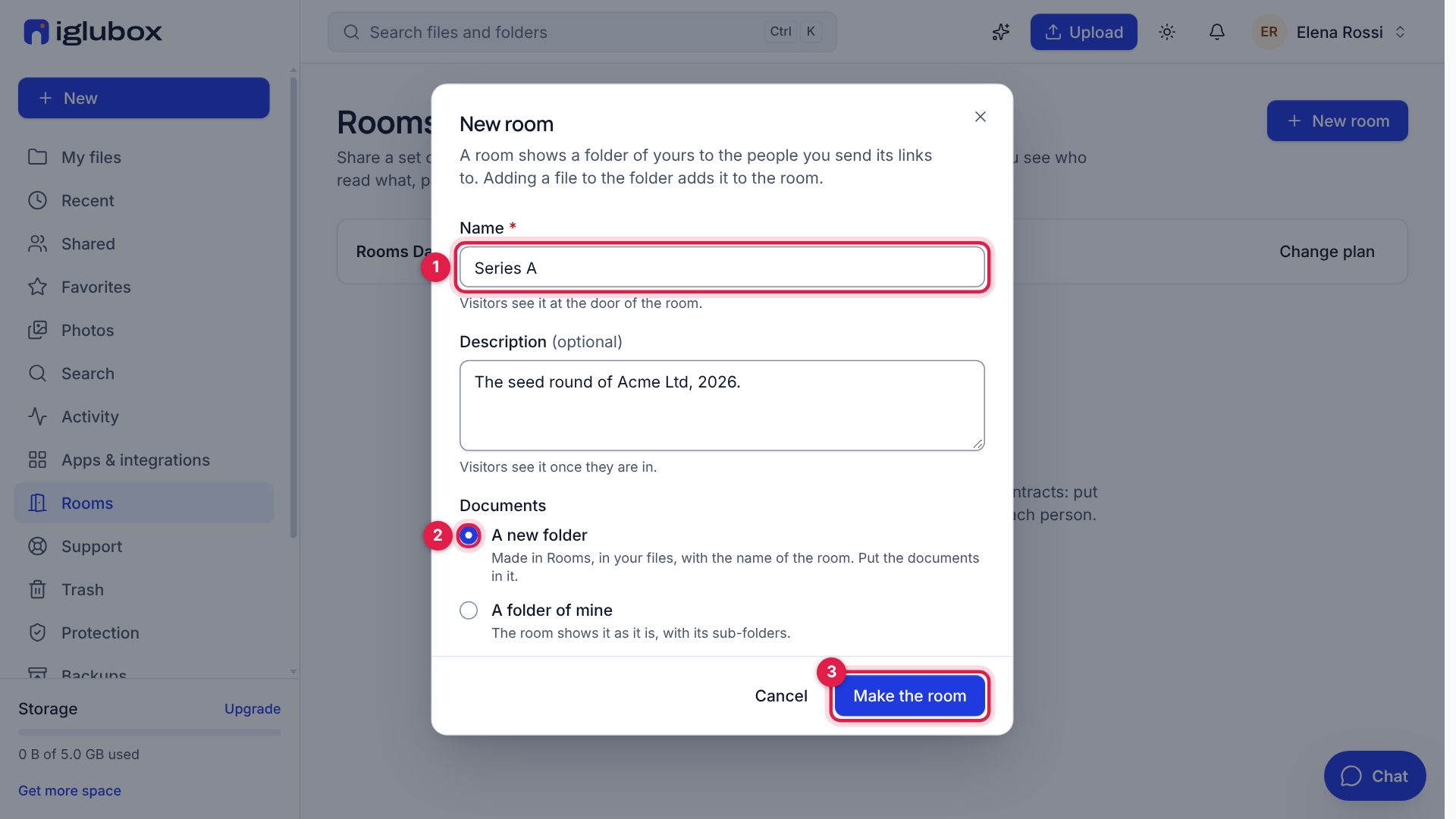
In the web app, open Rooms in the sidebar and choose New room. Give the room a name (1) — visitors see it at the door — and keep A new folder (2): the room gets a folder of its own in your files. Choose Make the room (3). To share a folder you already have, open its menu in your files and choose Make a room of it… instead.
Step 2: Put the documents in
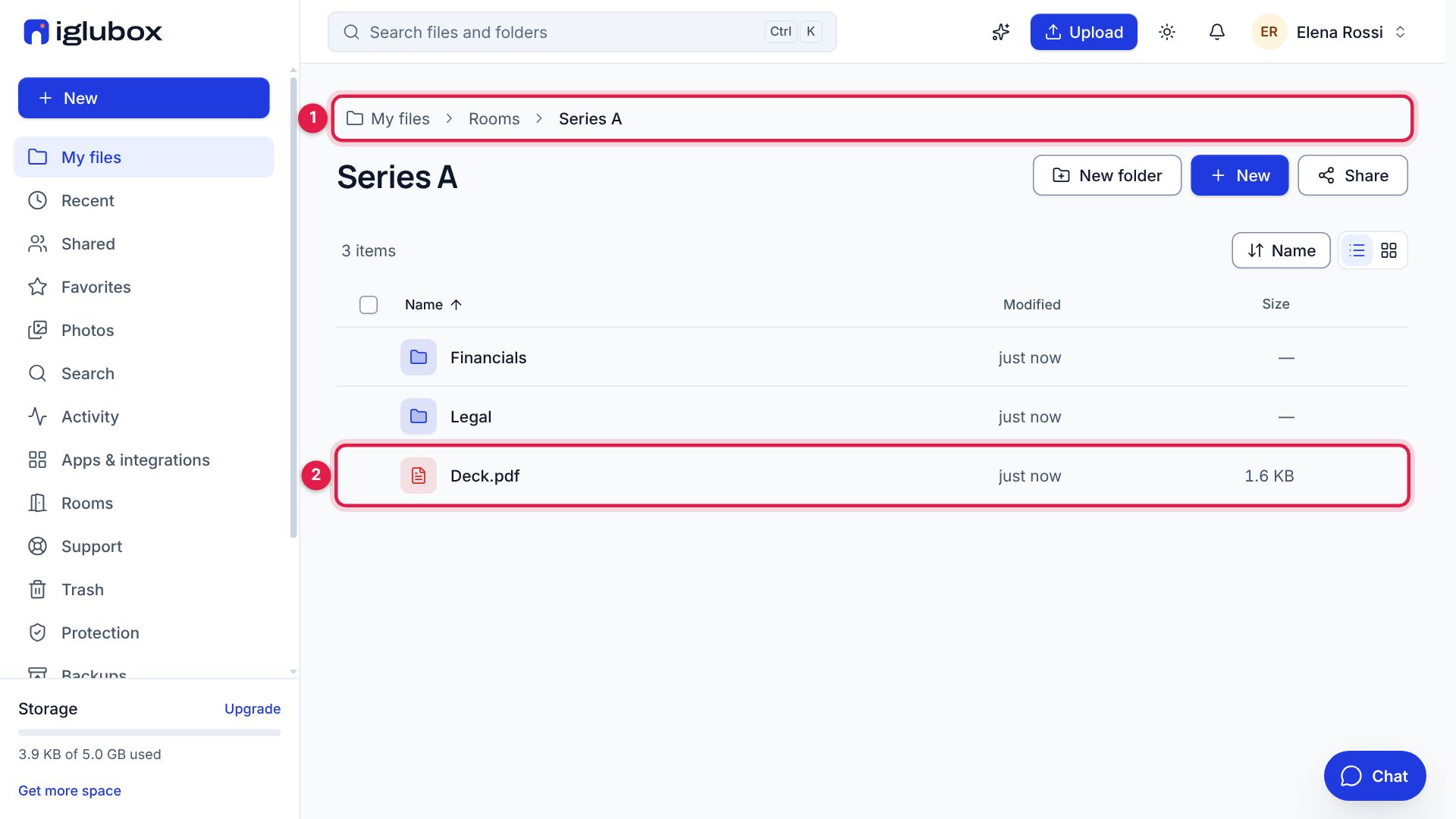
The folder of the room is under Rooms in your files (1). Upload the documents into it (2), or move them there, in folders if you like: the room shows them in the same order, numbered — 1 Financials, 1.1 Budget 2026, 2 Legal. What you add later, the room shows at once.
Step 3: Make a link for each person
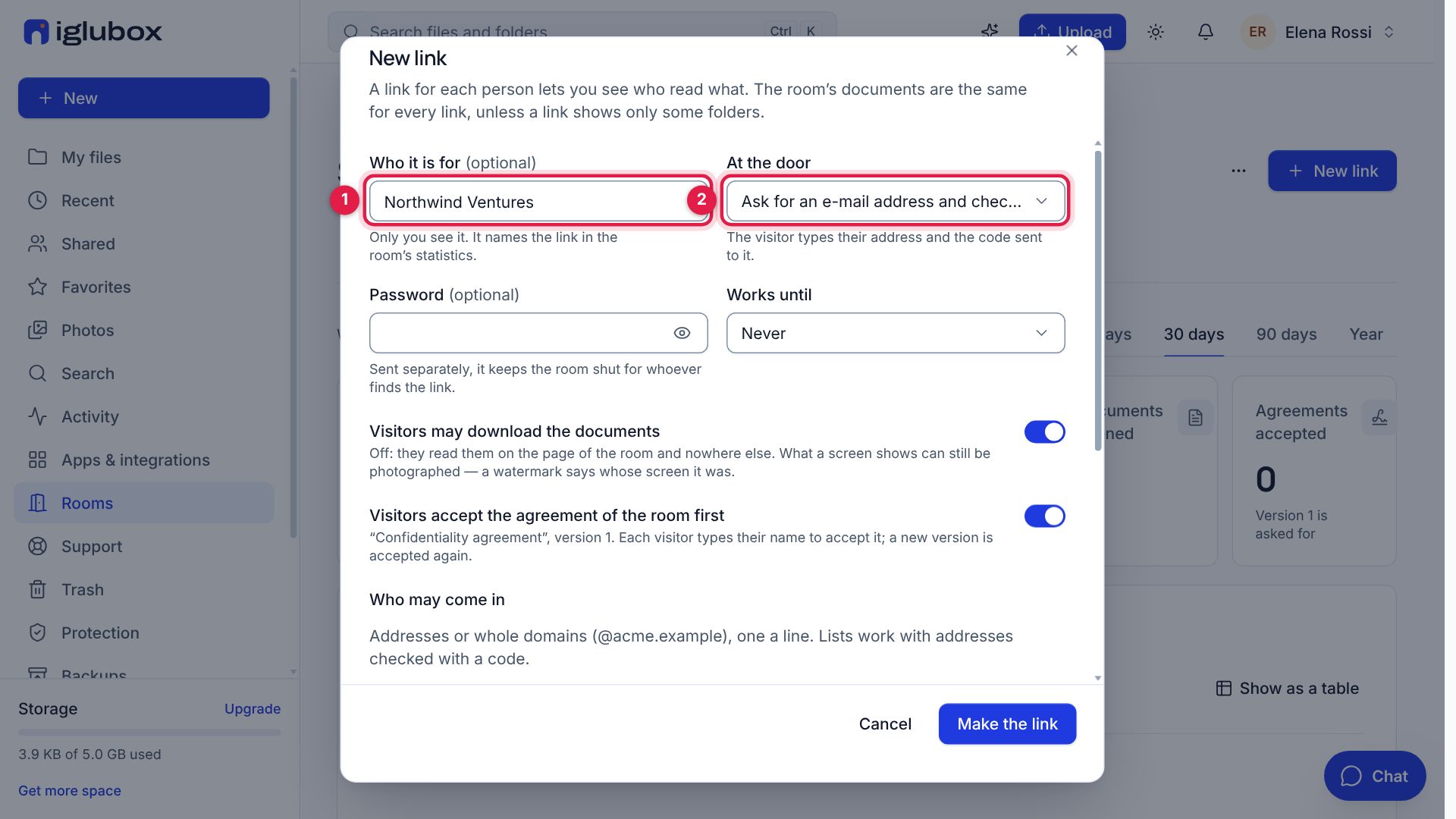
In the room, choose New link. Say who it is for (1): only you see it, and it names the link in what you read later. At the door (2), choose Ask for an e-mail address and check it with a code, so you know who is reading.
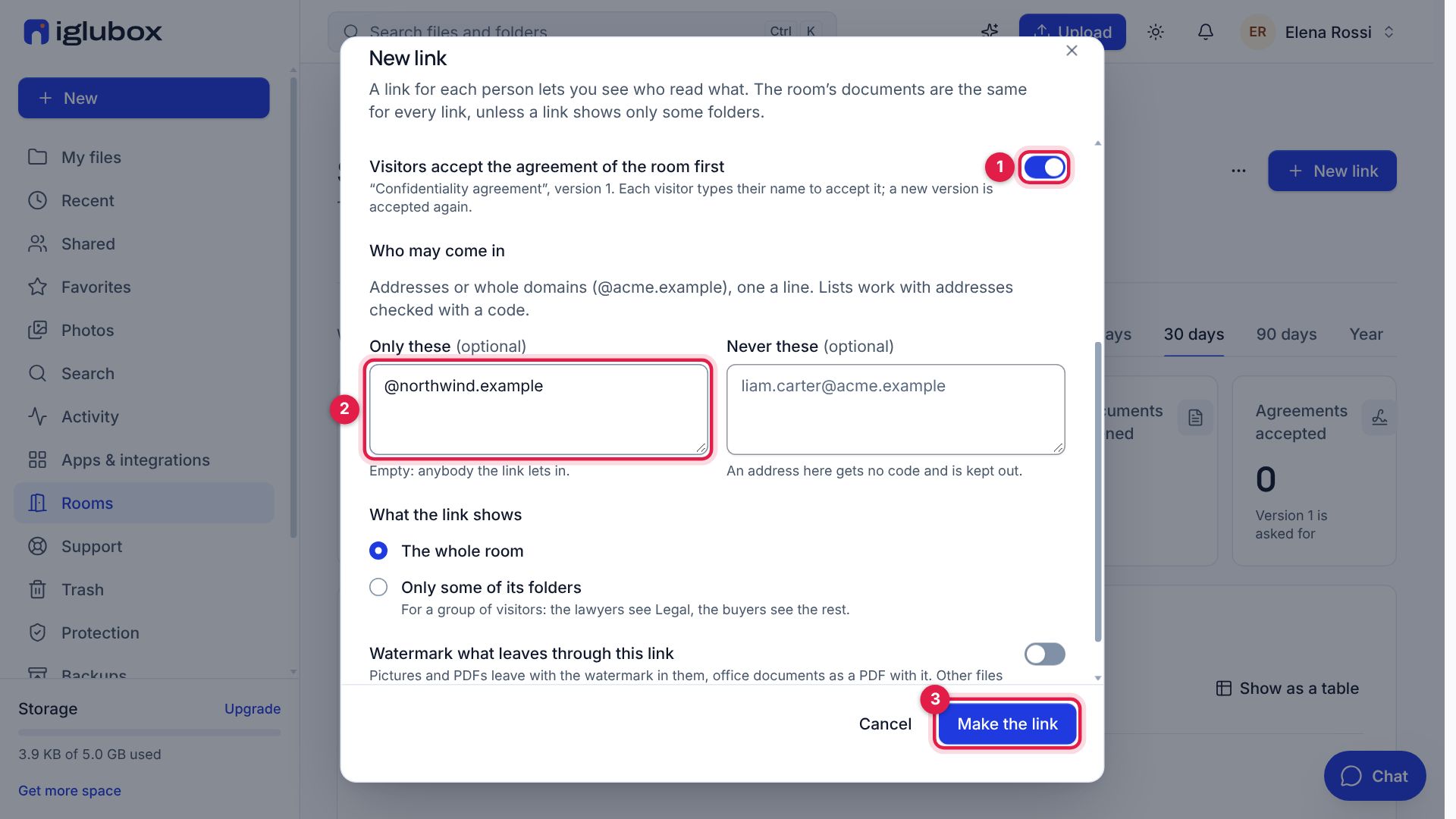
Further down, turn on the agreement (1) to have visitors accept the confidentiality agreement of the room with their name. Only these (2) lets in only the addresses or domains you list — here, everybody at Northwind. Choose Make the link (3), copy the link and send it.
Step 4: What your visitor sees
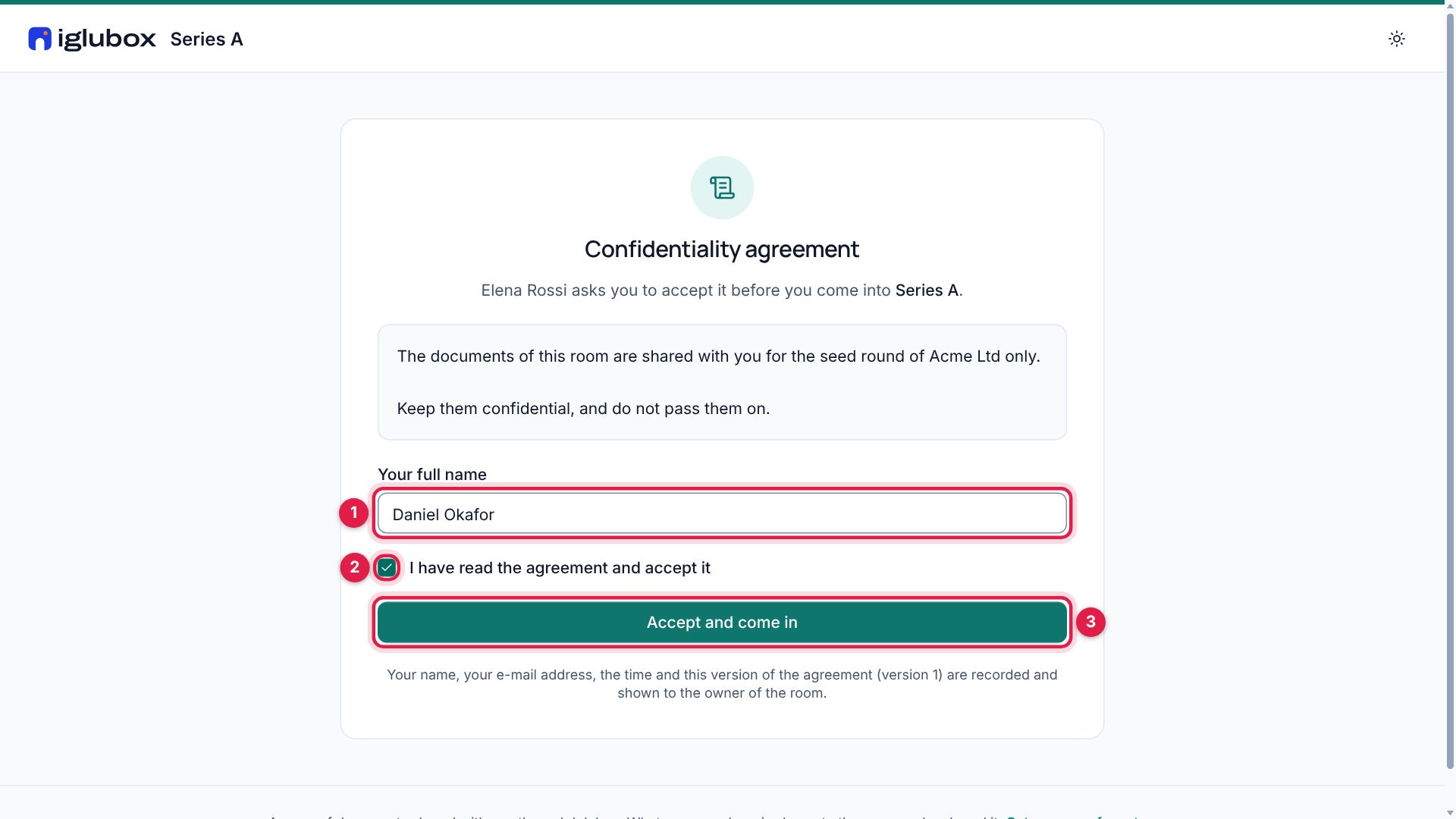
Your visitor types their address and the code we send to it, then writes their name under the agreement (1), ticks the box (2) and enters (3). An address that is not on the list is told it cannot enter, and you see that it tried.
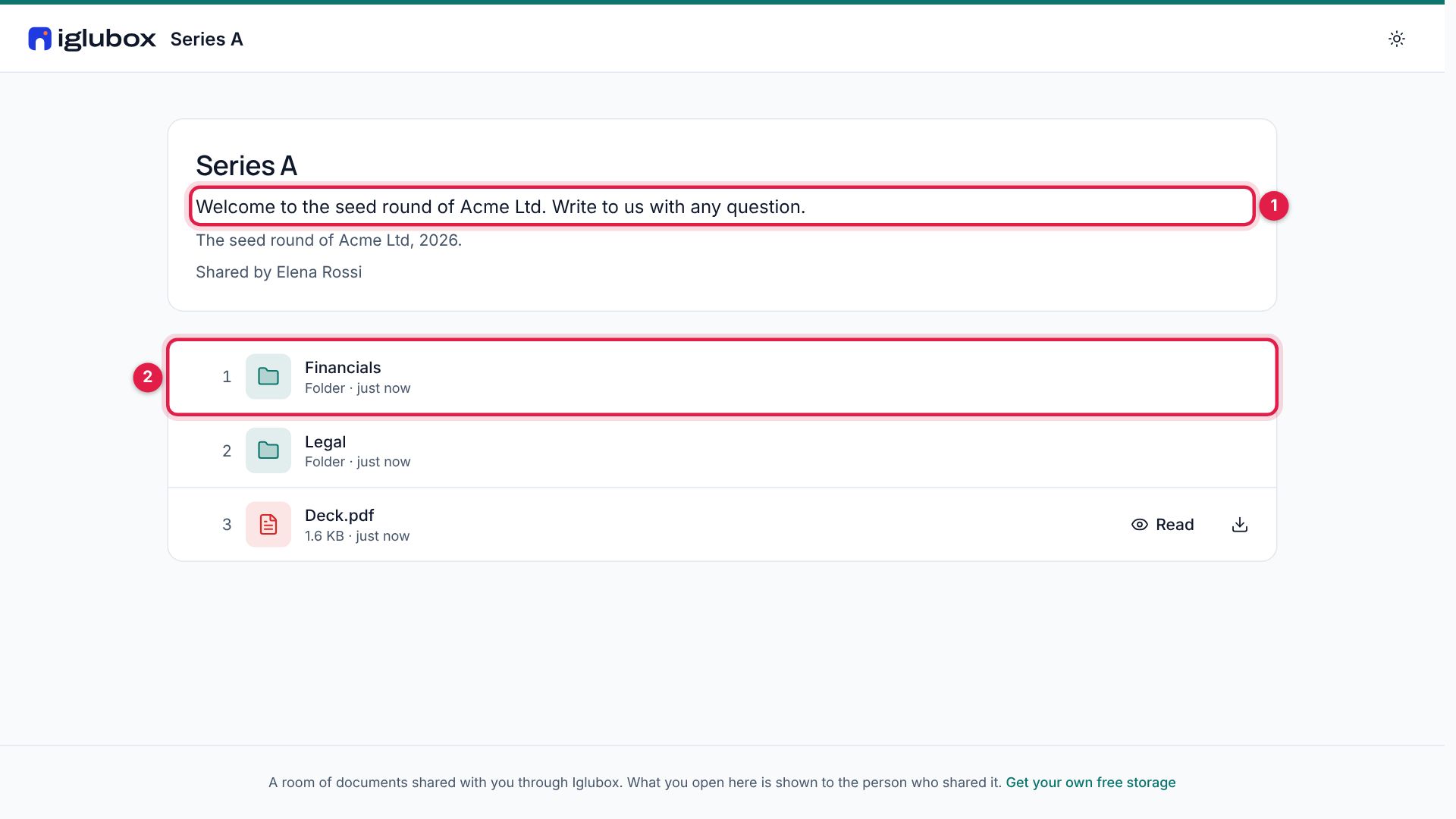
Inside, they find your welcome (1) and the documents in order (2). They read them on the page, and download them only if the link lets them.
Step 5: See who read what
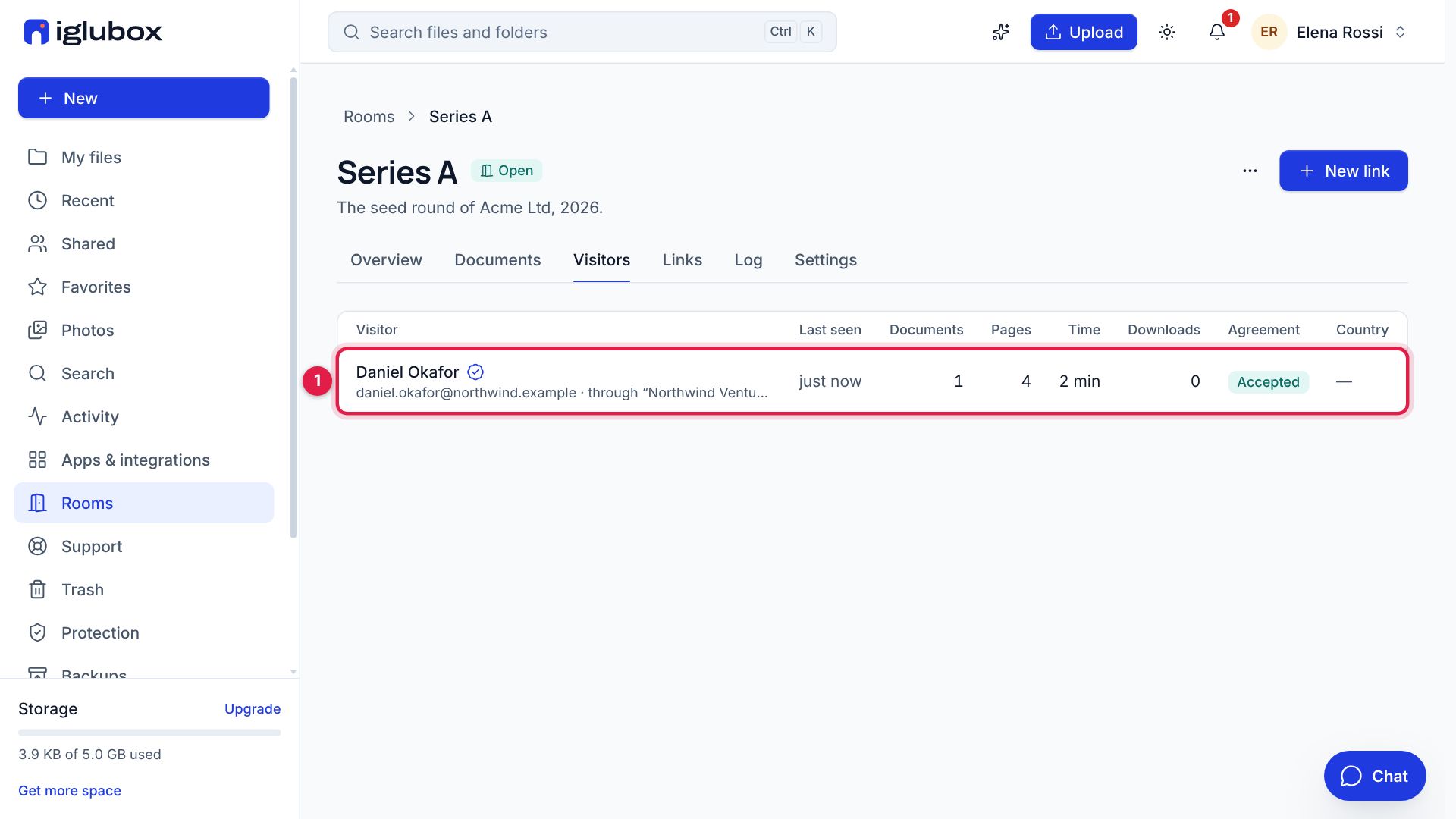
Visitors lists each person (1): when they came, the documents and pages they opened, the time they spent and the agreement they accepted.
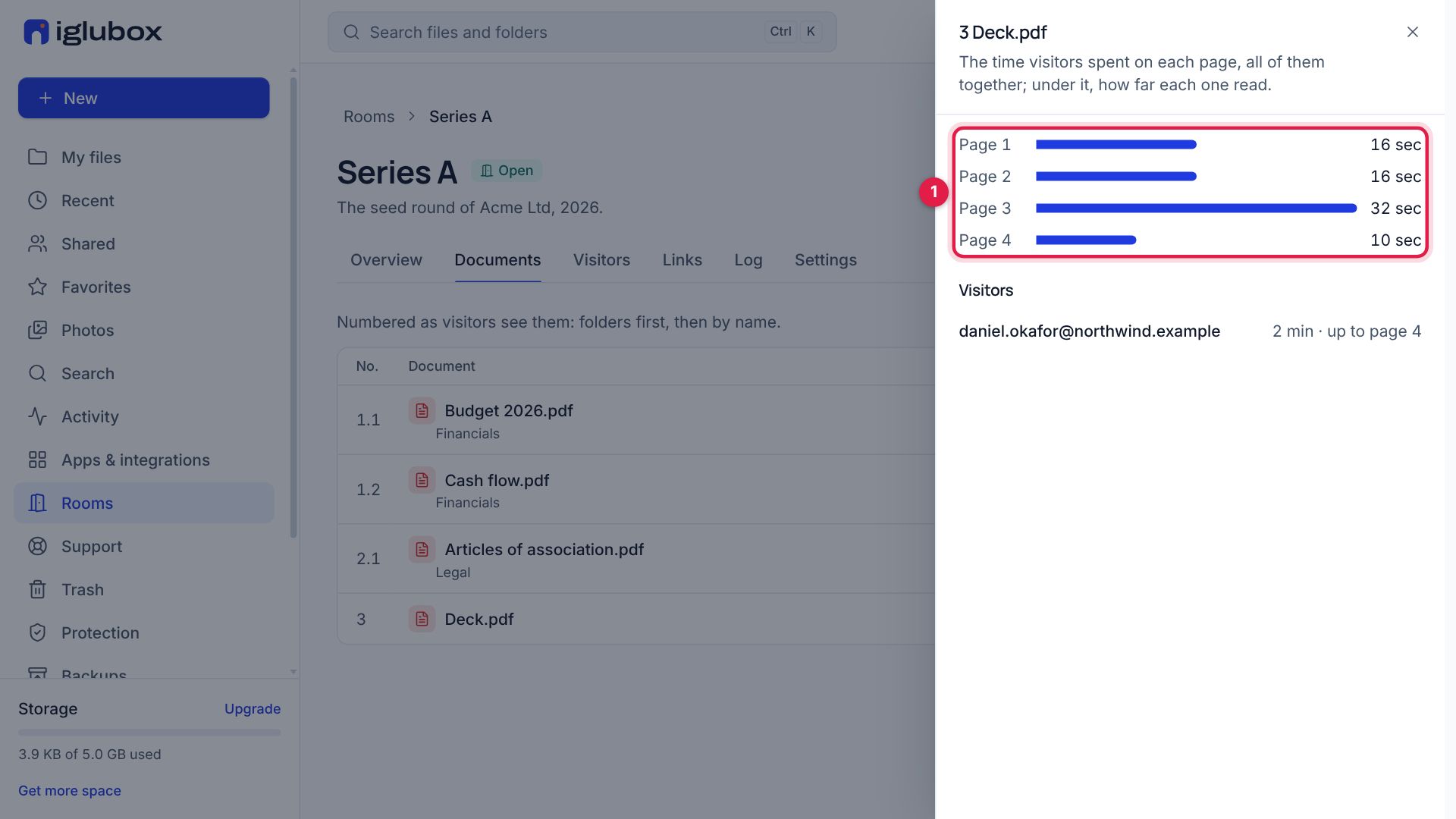
In Documents, open a document to see the time on each of its pages (1): the page that held them longest is the one to talk about.
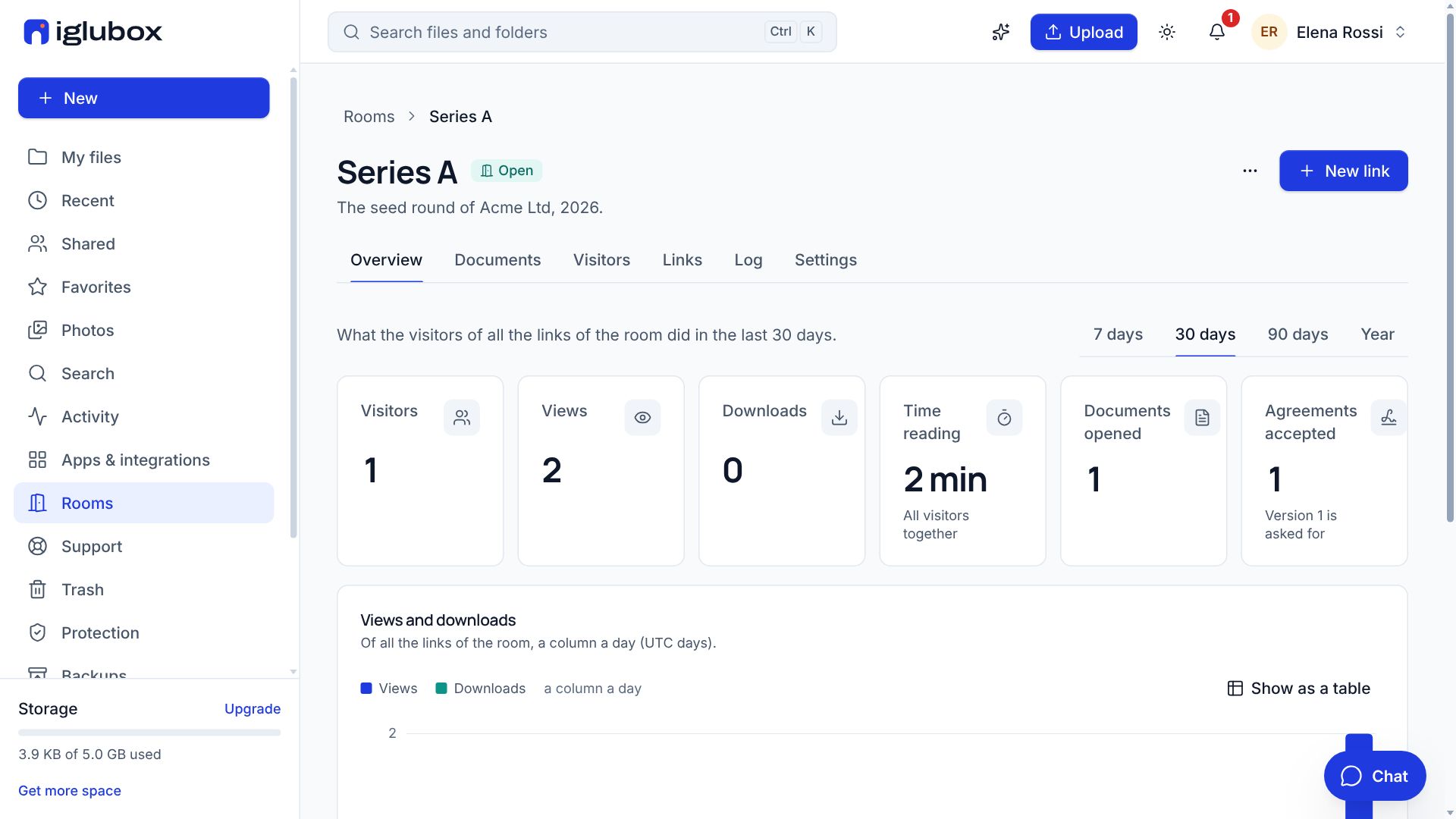
Overview adds it all up by day and shows the links nobody has opened yet. When the round is closed, choose Close the room in the menu of the room: every link of it says so at once.