Paper still arrives — a letter, a receipt, a signed contract. With the scanner of the web app you photograph the pages and keep one PDF in your files, easy to read and to find again.
What you need: an account, and the pages in front of you. On a phone, the camera opens; on a computer, choose photos you already have.
The pictures are from the product. The people and documents in them were made up for the pictures.
Step 1: Open the scanner
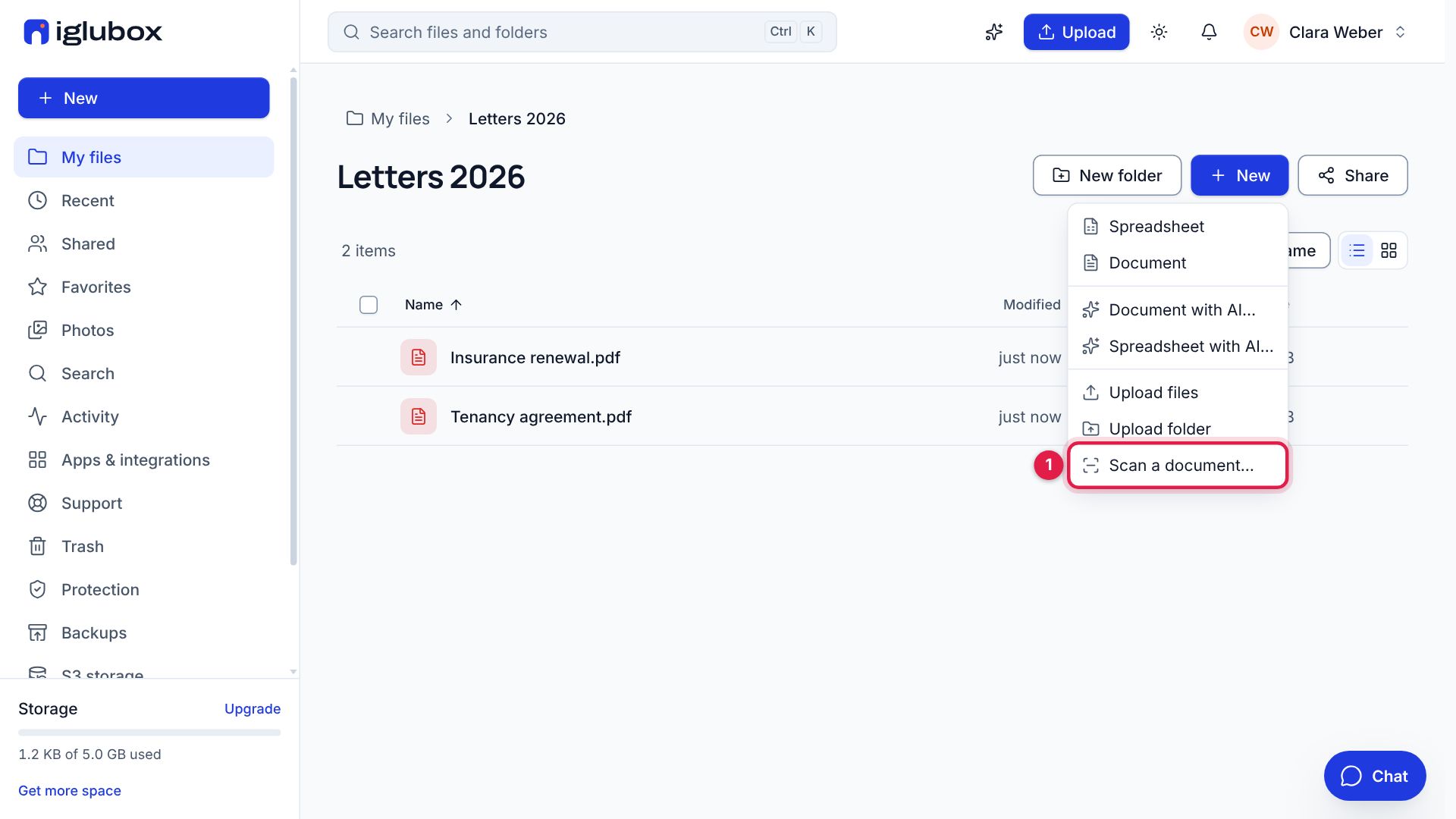
Open the folder the PDF is to go into, choose New and then Scan a document… (1).
Step 2: Photograph the pages
Choose Take a photo to use the camera, or Choose photos to pick photos you have. Put the sheet on a darker surface, in even light, and hold the camera above it.
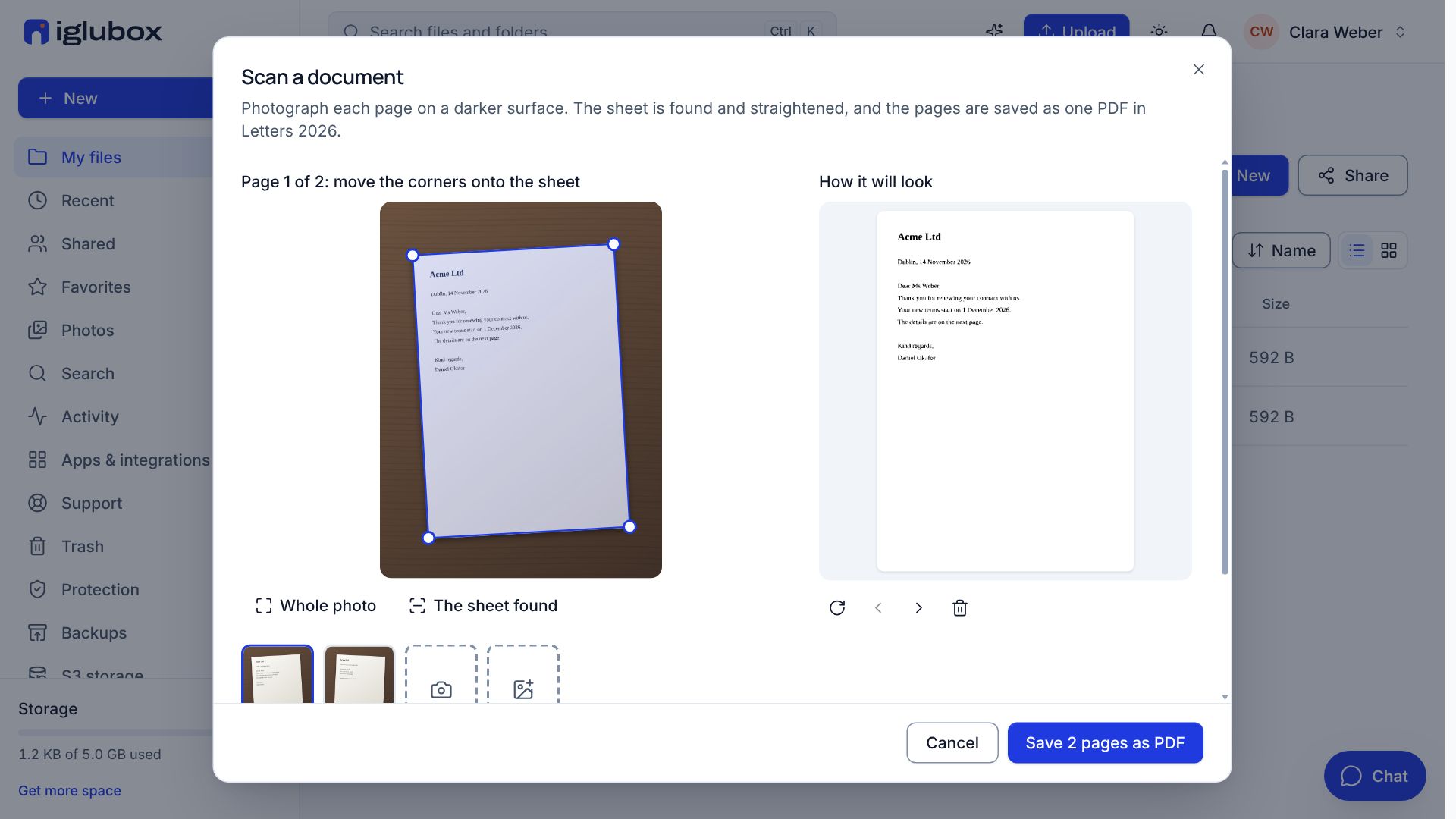
Step 3: Check the corners
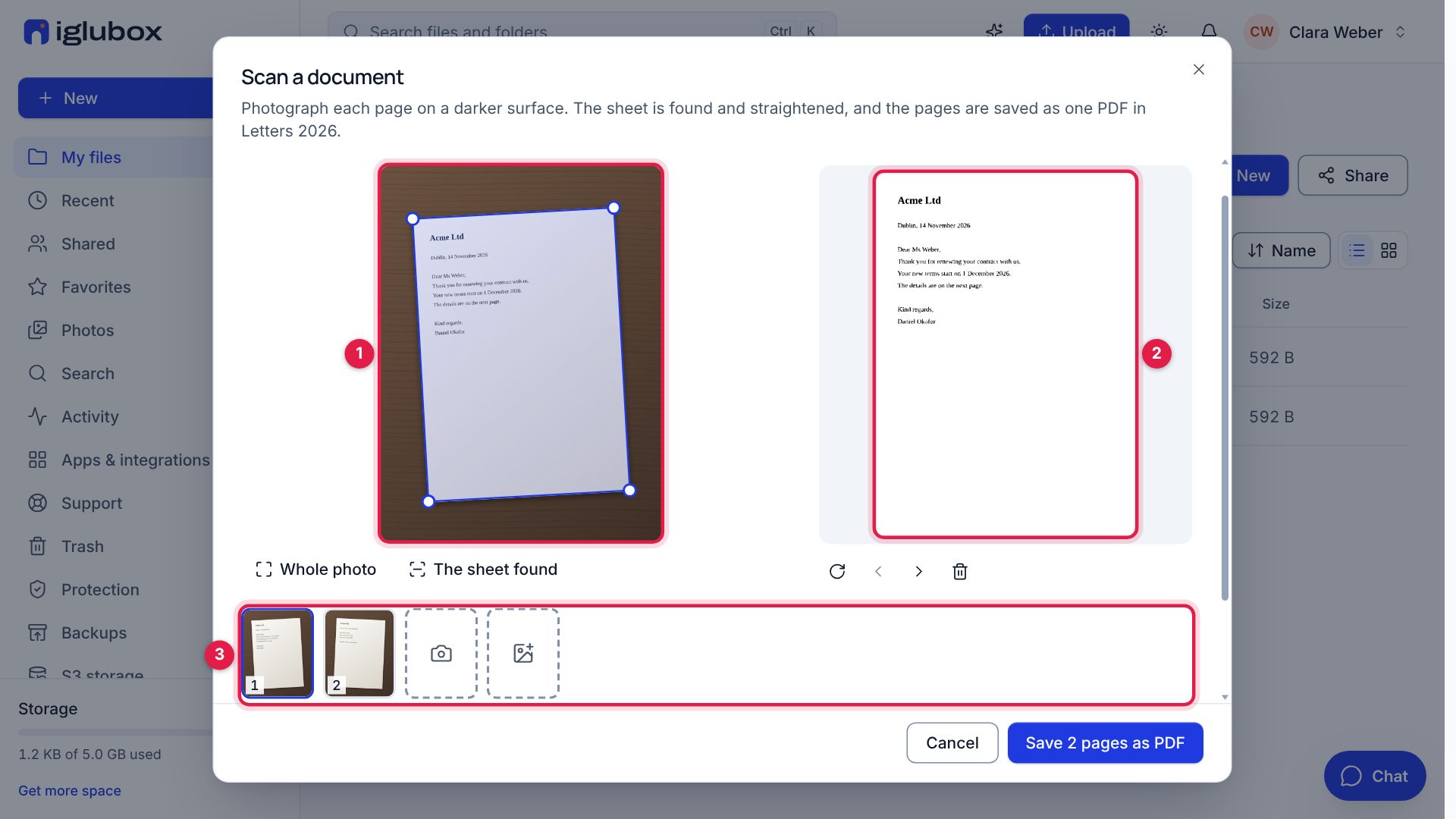
Each sheet is found in its photo: its corners are marked on it (1). If one is not on the corner of the sheet, drag it there — or select it and move it with the arrow keys. How it will look (2) shows the page straightened, as it will be saved. The pages are listed below (3): add one, turn it, move it or remove it.
Step 4: Name it and choose the look
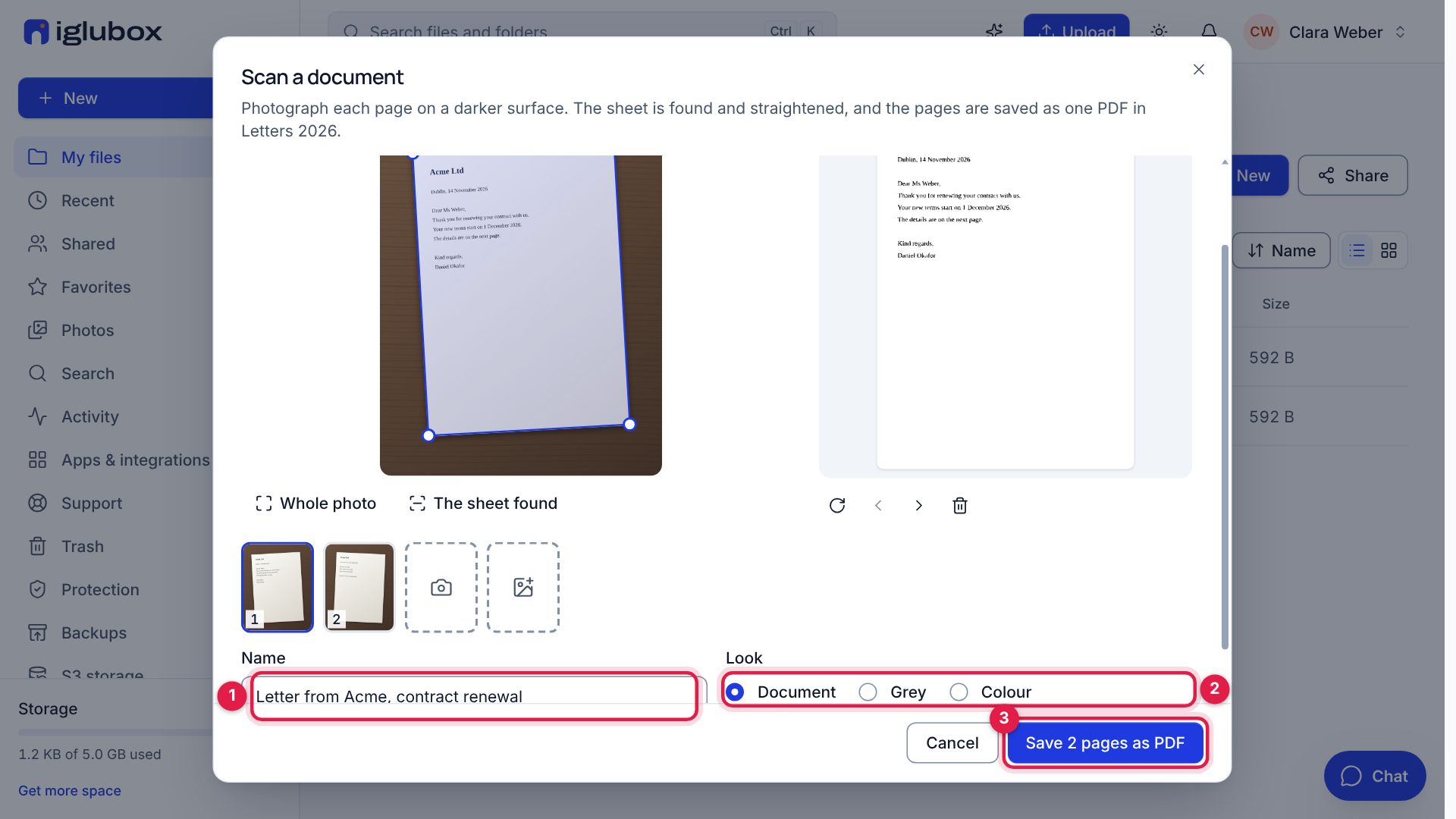
Write a name (1) — without one, the PDF is named by the day and the time. Choose the look (2): Document makes the paper white and the writing dark and takes shadows out, Grey and Colour keep the photo’s shades. Then choose Save as PDF (3).
Step 5: The PDF is in your folder
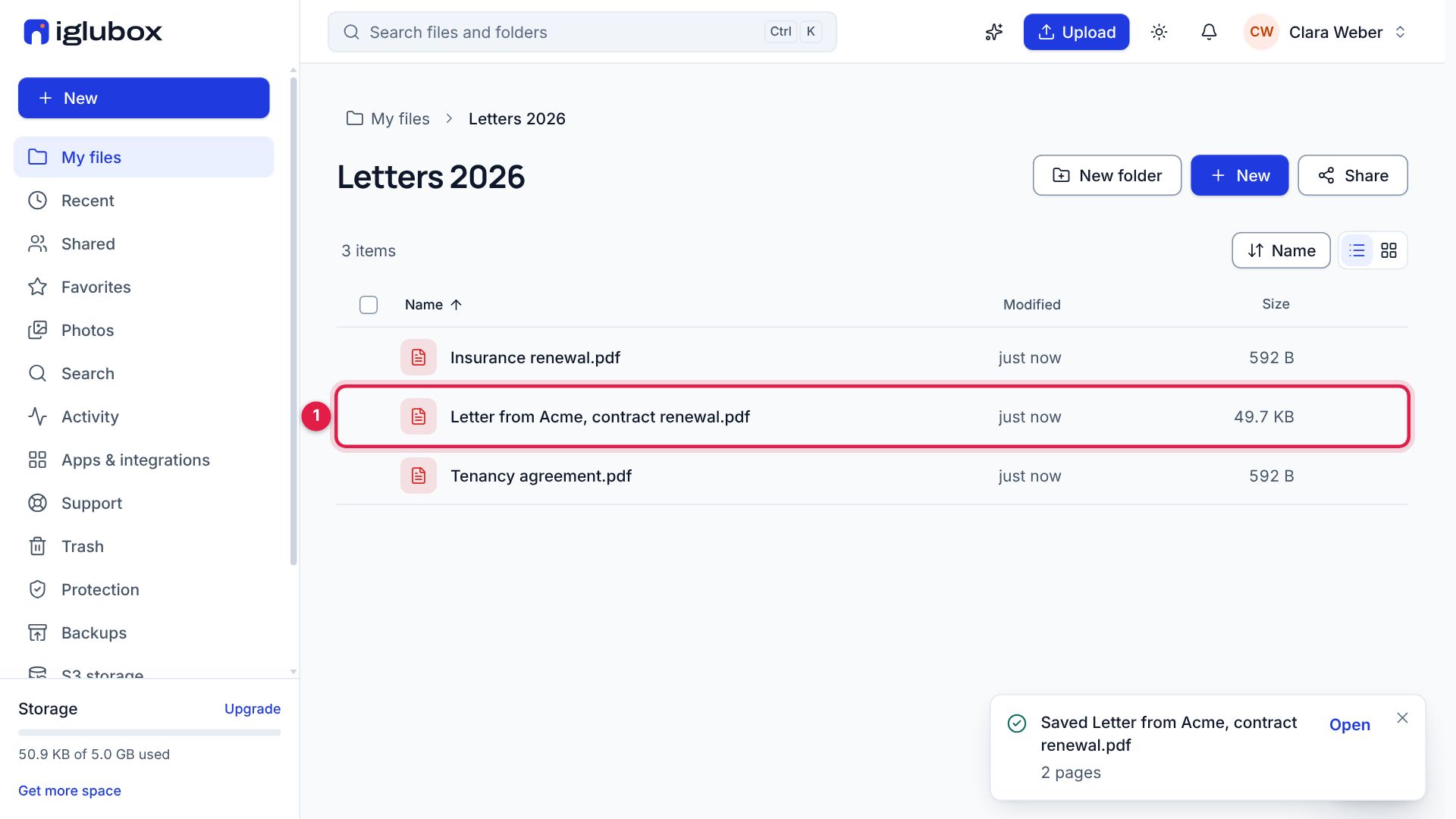
The PDF is in the folder at once (1), with all its pages. Open it to read it, share it, or sign it like any other PDF.
On the phone
In the phone apps, open a folder, choose + and then Scan a document. Take one photo per page, choose the look and Save as PDF: the pages are found and straightened when you save. Without a connection, the phone makes the PDF from the photos as they are and uploads it when you are back online.
The help center has the details: Scan a document into a PDF.