Sync is wonderful until something goes wrong on one computer. A laptop that starts encrypting its files will, if nothing intervenes, upload the encrypted versions as faithfully as it uploads your edits. Here is what happens in Iglubox instead.
The laptop is infected
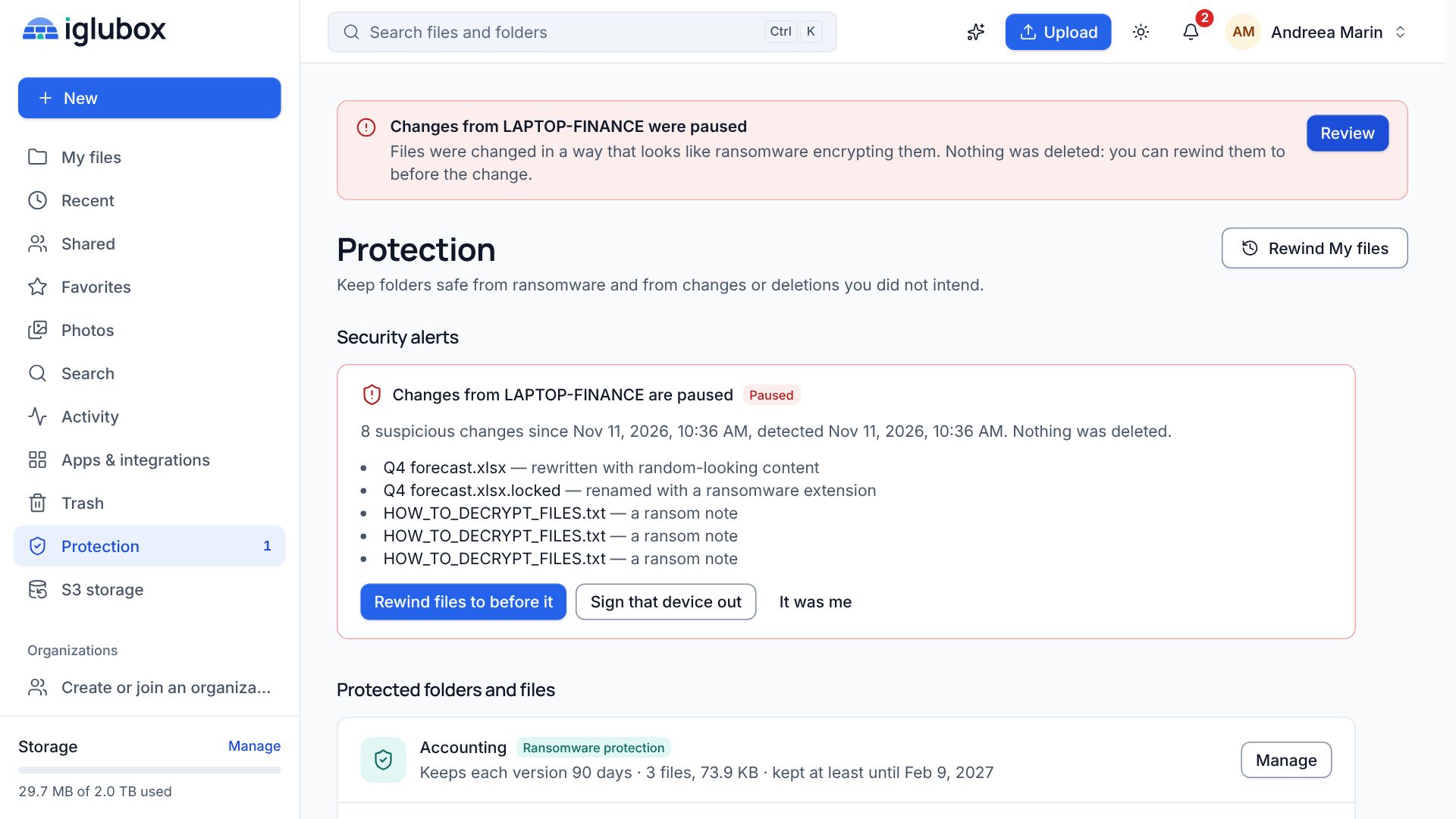
Ransomware does three things that ordinary work does not. It rewrites files with content that looks random: a spreadsheet or a PDF that suddenly has no structure at all. It renames files to its own extensions, such as .locked. And it leaves ransom notes, files with names like HOW_TO_DECRYPT_FILES.txt, in folder after folder.
Iglubox looks at every change it receives for these three signs and counts them for each sign-in: each computer, phone or browser separately.
The device is paused
When the changes from one sign-in cross the limit, that device is paused. It can still read your files, but every change it tries to make is refused. Your other devices carry on as usual, and the desktop app on the paused computer stops syncing until the alert is resolved.
At the same time you are told: with a notification, an e-mail and a banner across the web app. The alert lists the suspicious changes, so you can see what happened before you decide anything.
You decide
From another device, open the alert (Review on the banner, or the Protection page). You have three choices:
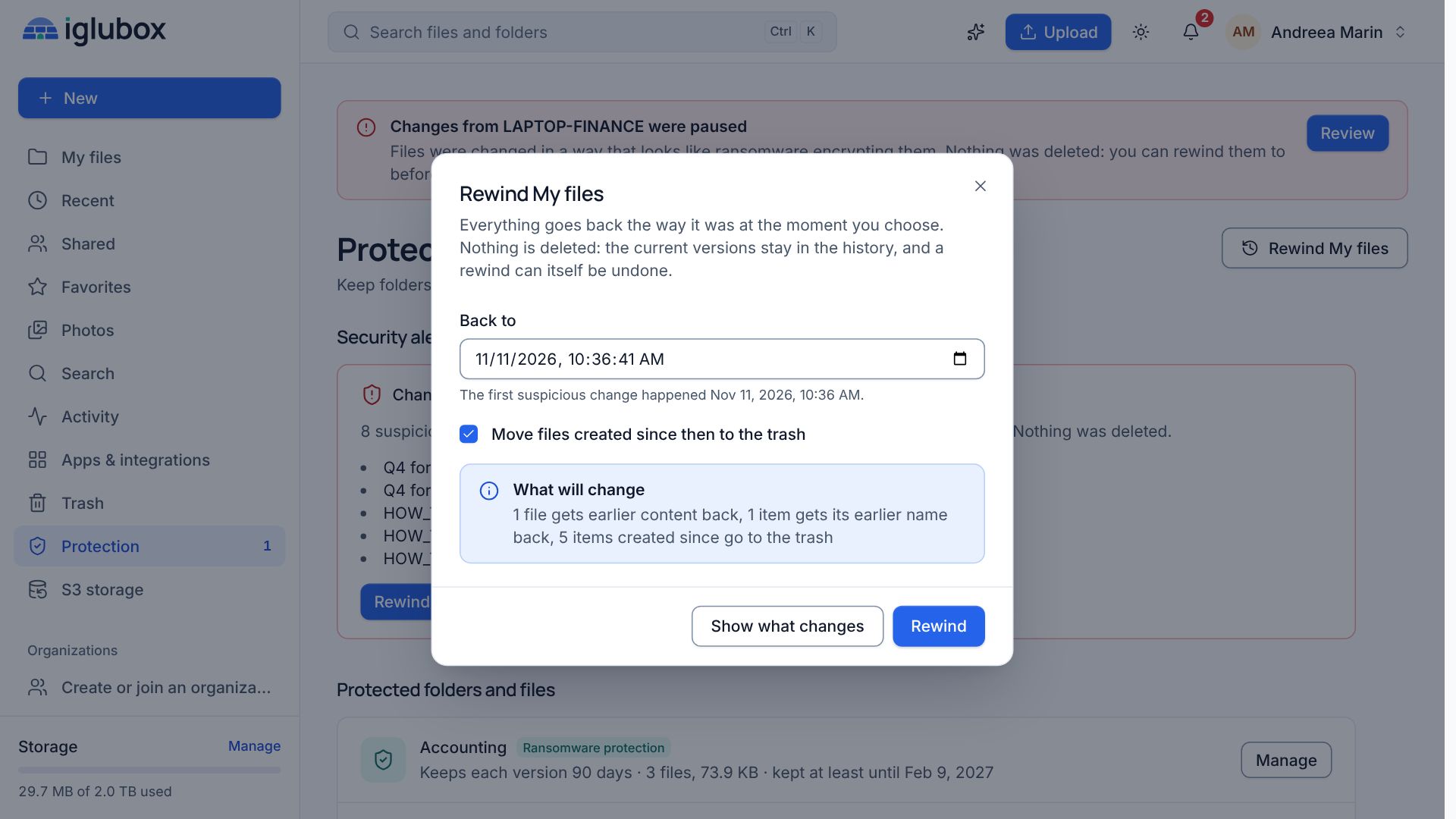
- Rewind files to before it puts your files back to a moment you choose; it suggests the moment of the first suspicious change. Files get their earlier content back as a new version, renamed items get their names back, and files created since go to the trash. Nothing is deleted for good, and Show what changes lists what will happen before you start.
- It was me, if it really was you, encrypting an archive on purpose for example. The device is resumed.
- Sign that device out, so that sign-in can do nothing more.
A rewind and It was me ask for a code from your authenticator app. Someone who has your password but not your phone cannot use them, and cannot weaken a protection either.
Before it happens: ten minutes well spent
Turn on two-step verification. The steps above need it, and it is the most effective protection any account can have.
Protect the folders that matter. Protect… on a folder keeps every version and every deleted file in it for the number of days you choose, and nobody can delete them for good before then. For records that must never change, such as signed contracts or invoices, choose write-once: the files cannot be changed, renamed, moved or deleted until their date.
Make computer backups immutable. In the Windows and Linux apps, Immutable backup… on a backed-up folder protects its copy in your account the same way.
What Rewind cannot do
Rewind works on the copies in your account. It does not clean the infected computer, which is a job for your IT support or a reinstall, and it cannot bring back files that only ever existed on that computer. It goes back as far as the versions that are kept: your plan’s version history, or longer in a protected folder.