Your phone finds a photo when you search for a dog. Your photos here do the same: the service recognises what is in every photo and video you keep — people, animals, vehicles, food and some 80 kinds of things — and reads the text in them, in English and Romanian.
What you need: nothing to switch on. What is in your photos is recognised on our servers, and nothing is sent anywhere for it; the photos you stored before are read in the background. The help center has the short version: Photos.
The pictures are from the product. The photos in them are free pictures; their places and dates were made up for the pictures.
Step 1: Open Photos
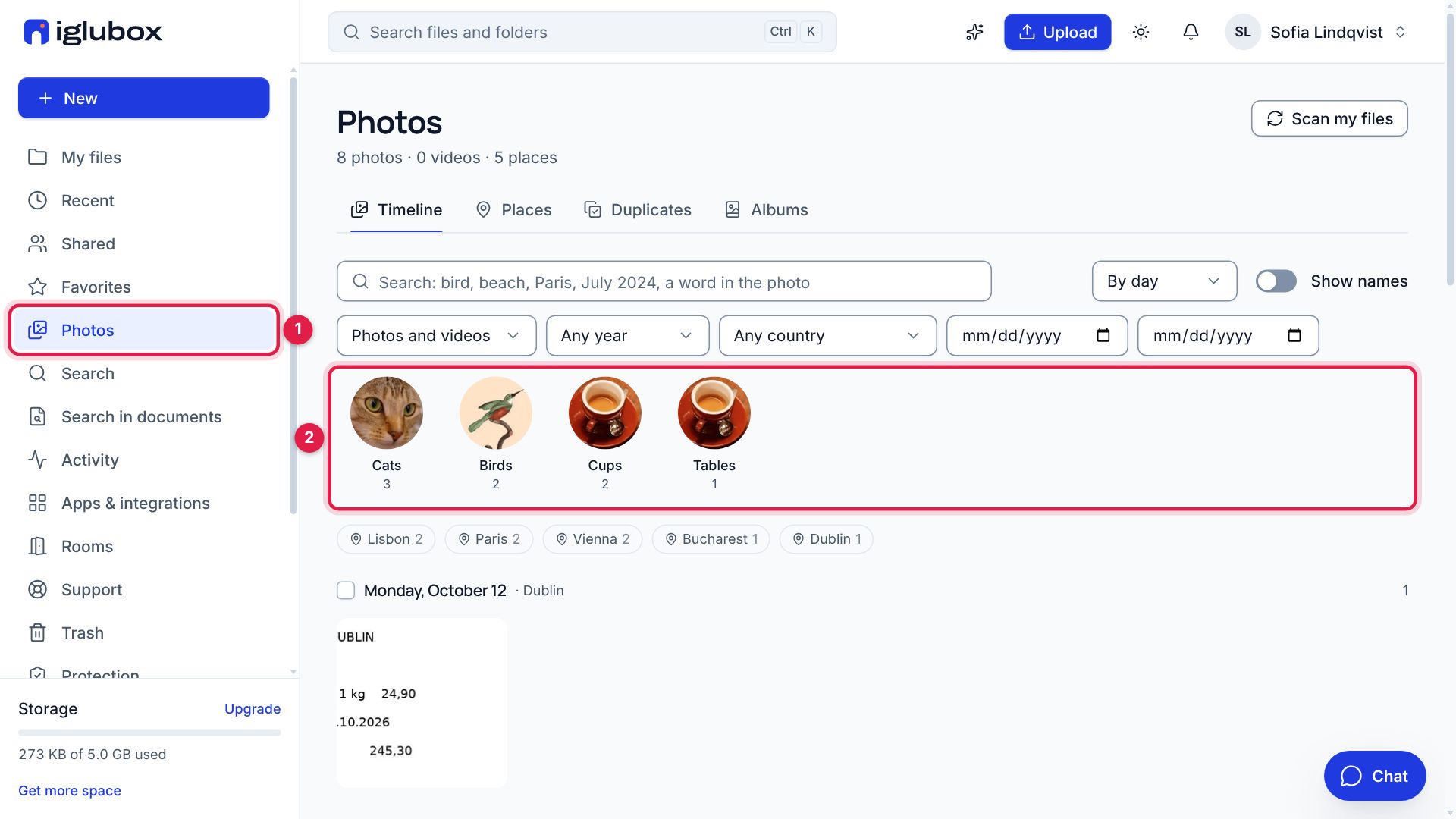
Open Photos in the sidebar (1). Above your photos, a row shows the things found in them (2), each with the number of photos it is in: cats, birds, cups. Choose one to see its photos, and choose it again to see them all.
Step 2: Search for what is in them
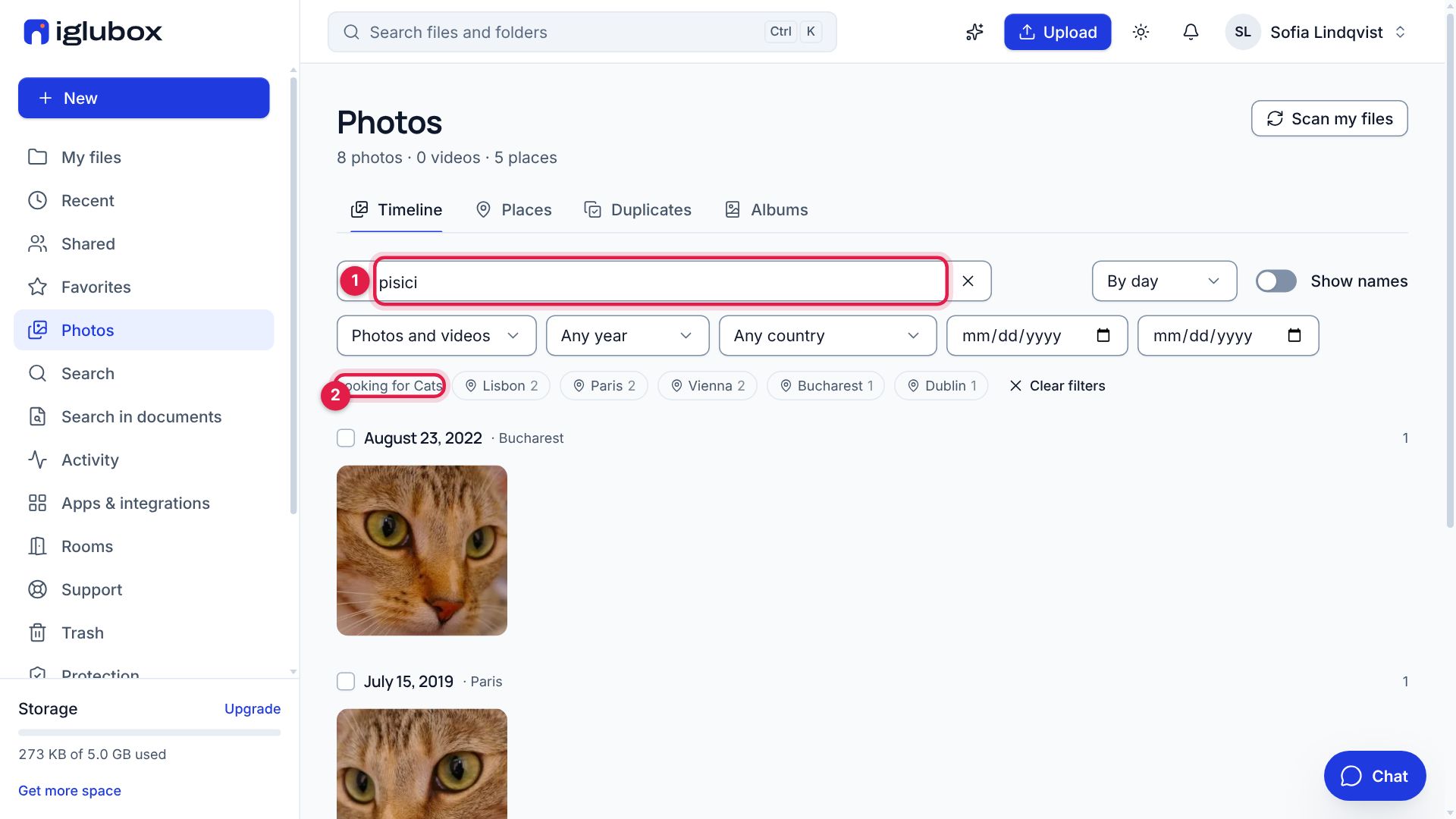
Type what you are looking for in the search box (1), in English or in Romanian: bird or pasăre, cats or pisici, animals. Plurals, families of things and the words of both languages are understood. The page says what it understood (2), and shows the photos and videos that have it.
Step 3: Add where and when
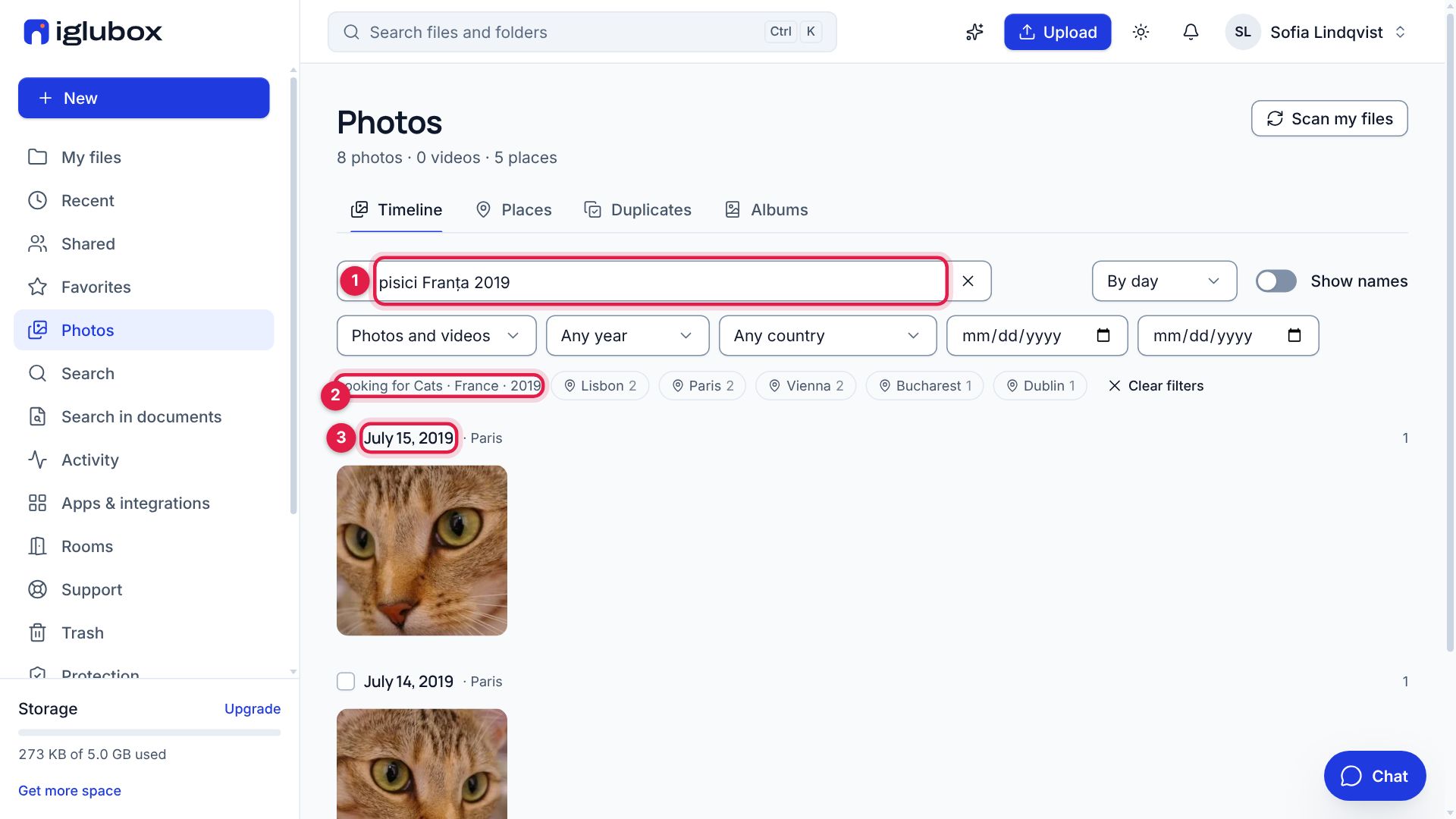
Add a place or a time: a city or a country, in English or Romanian (Paris, Franța), a year, a month or a season (2019, iulie, vara). Every word must be found: pisici Franța 2019 (1) is understood as cats, in France, in 2019 (2), and finds the cats photographed in Paris that July — the day and the place are above each (3).
The year and country under the search do the same with a click.
Step 4: Find the text in a photo
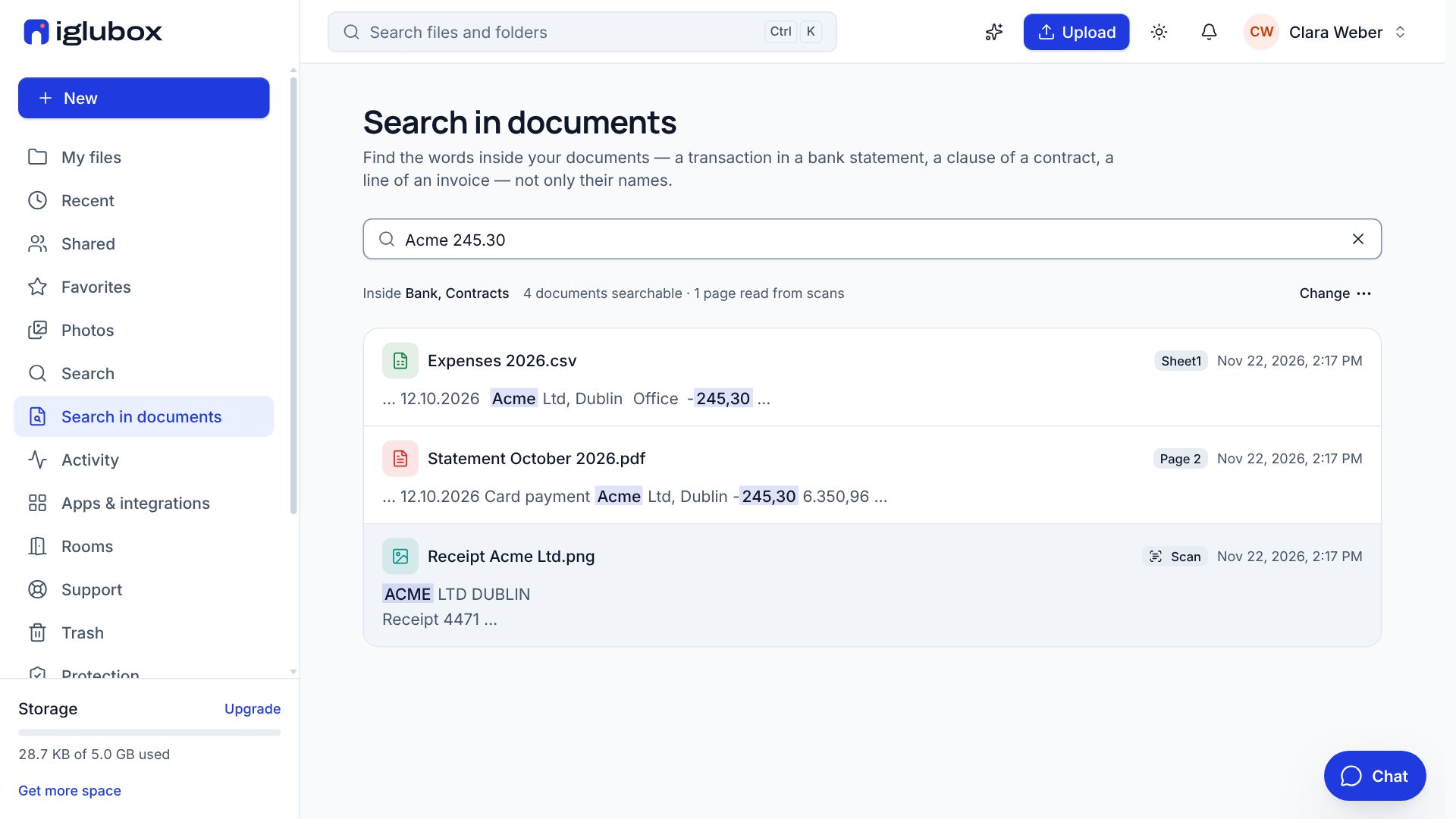
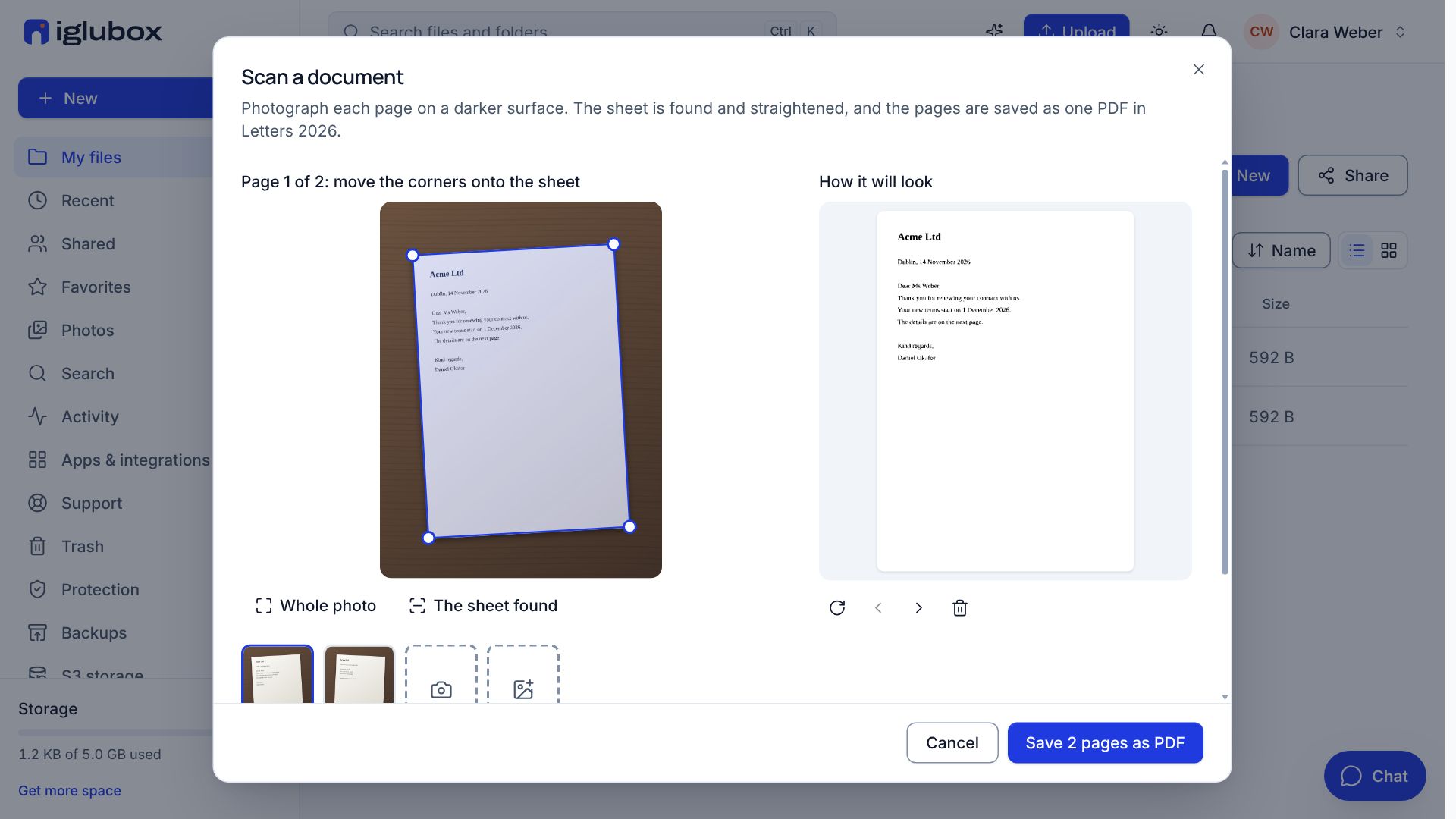
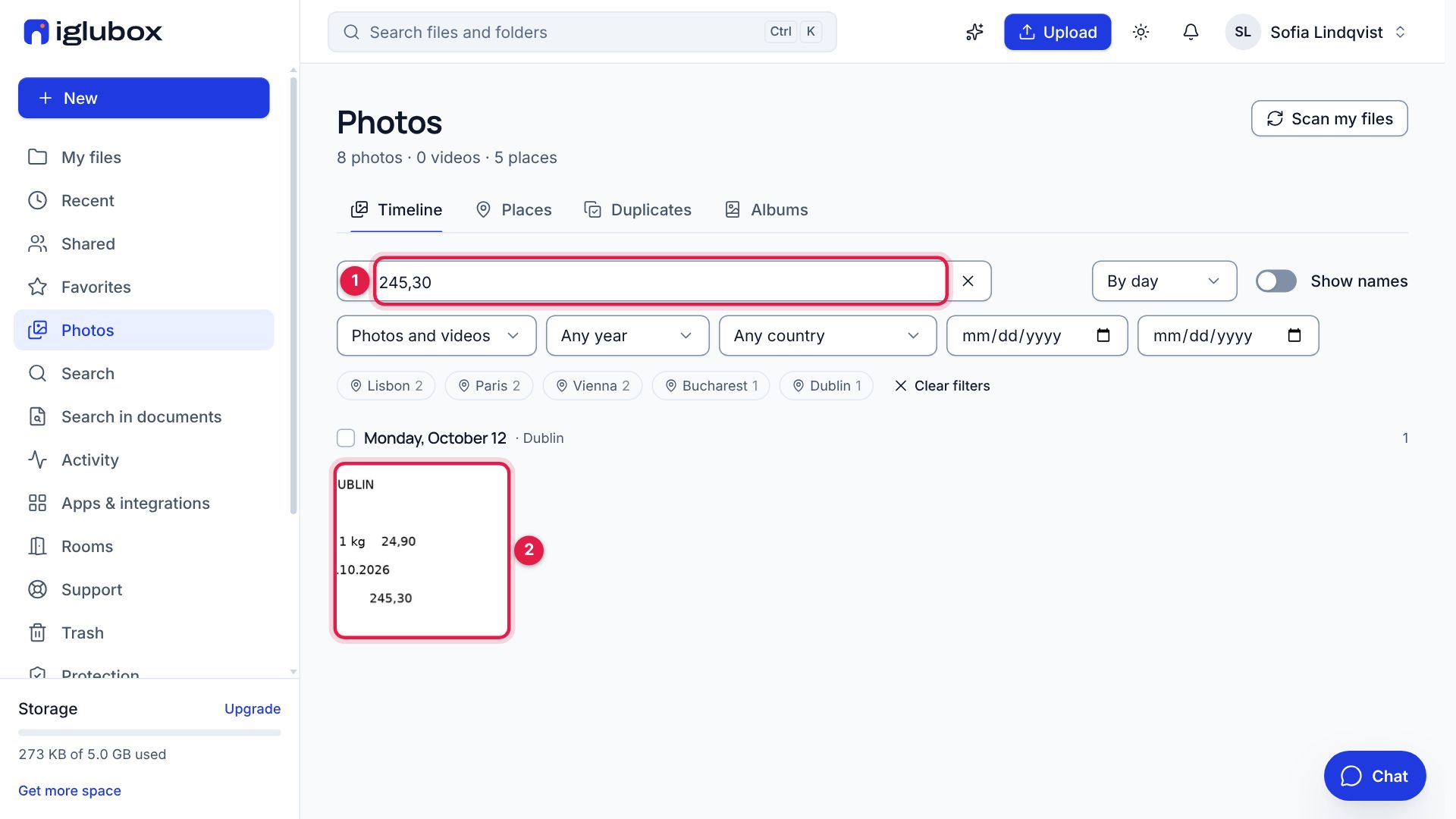
A receipt, a page or a sign you photographed is found by its words and its numbers. Type the total of the receipt, 245,30 (1), and the photo of the receipt appears (2).
Step 5: Arrange them your way
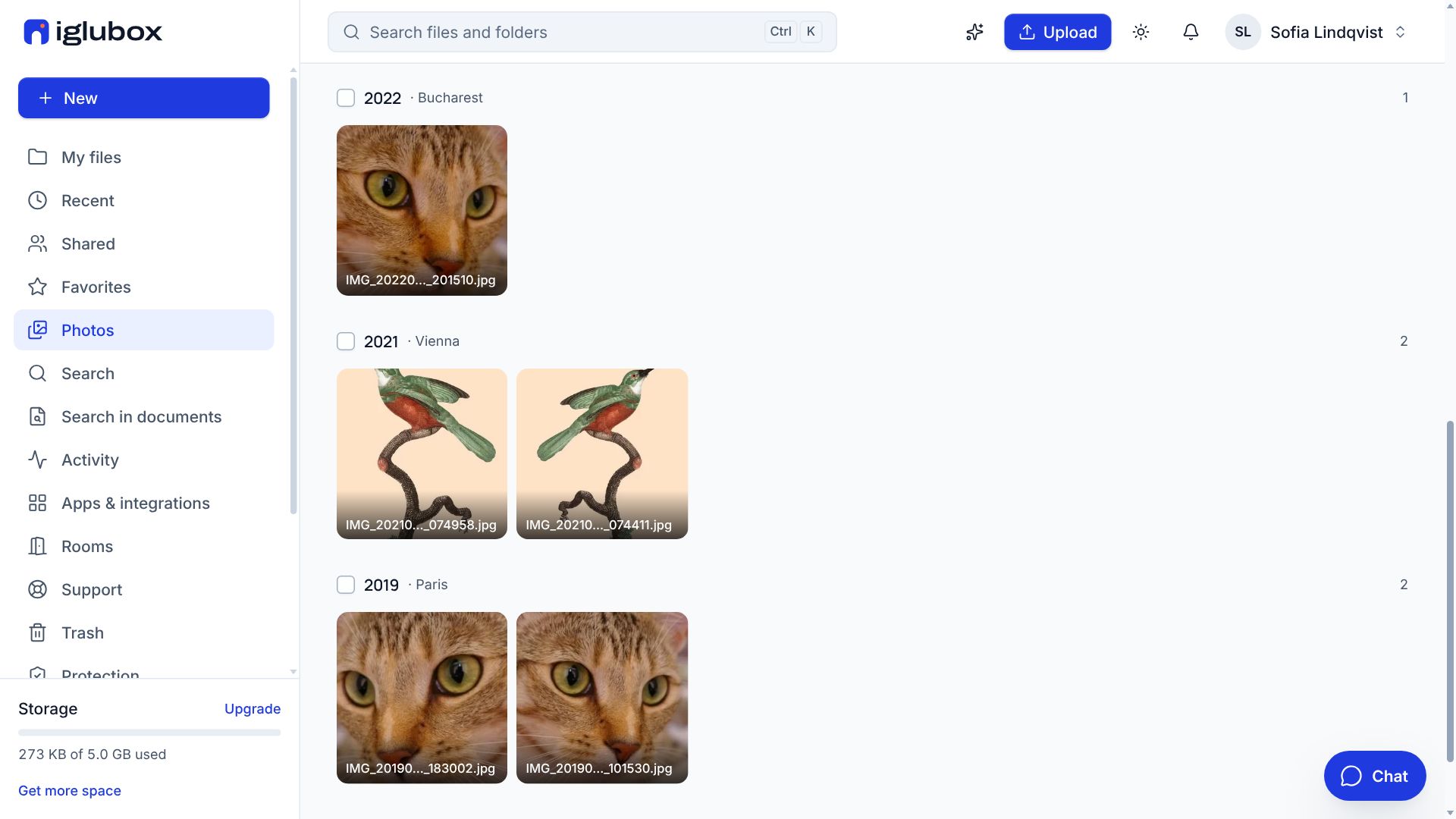
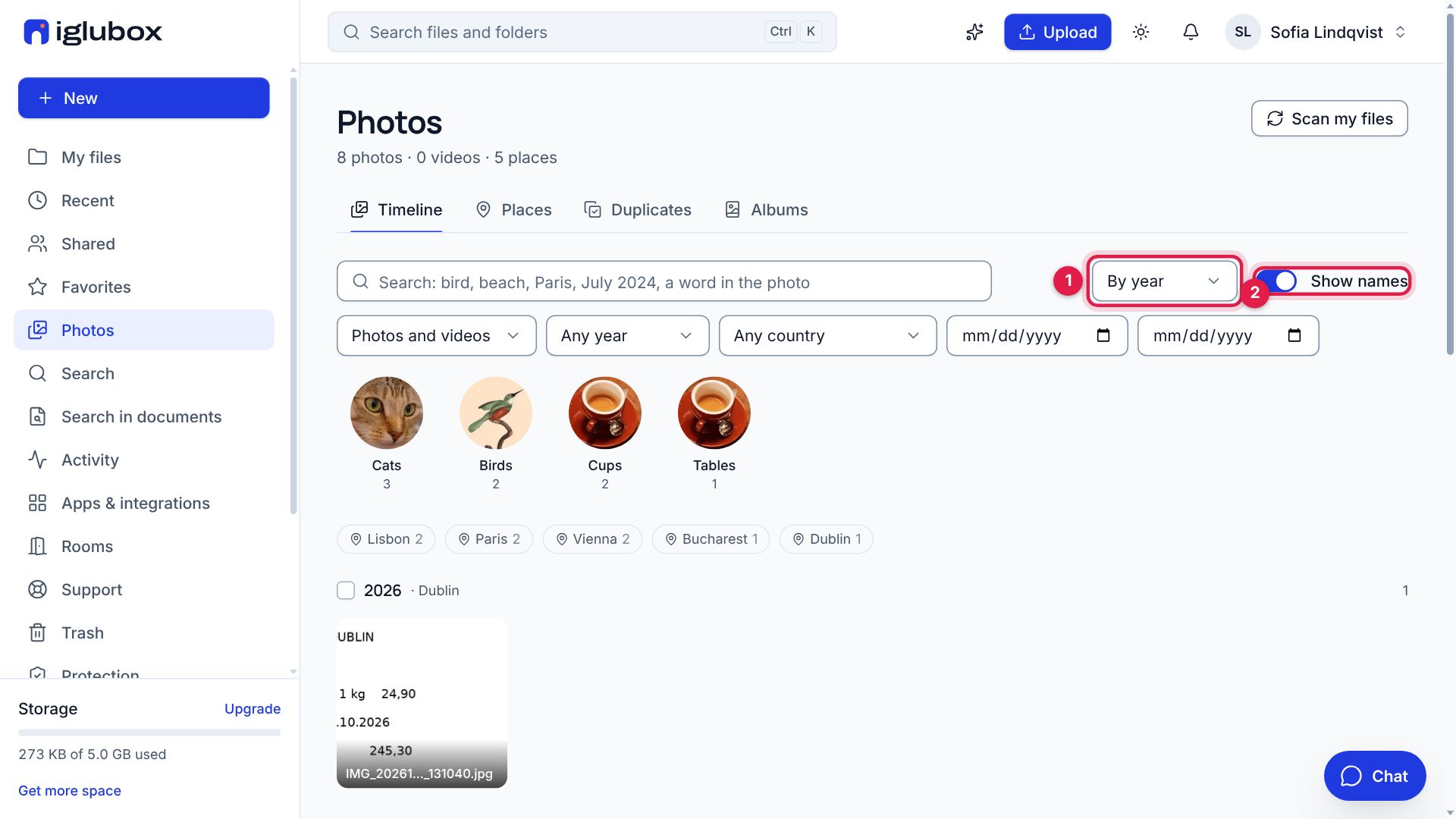
Group your photos by day, by month or by year (1), and turn on Show names (2) to see the name of every photo on it. Photos remembers both in this browser.
Step 6: See what was found in a photo
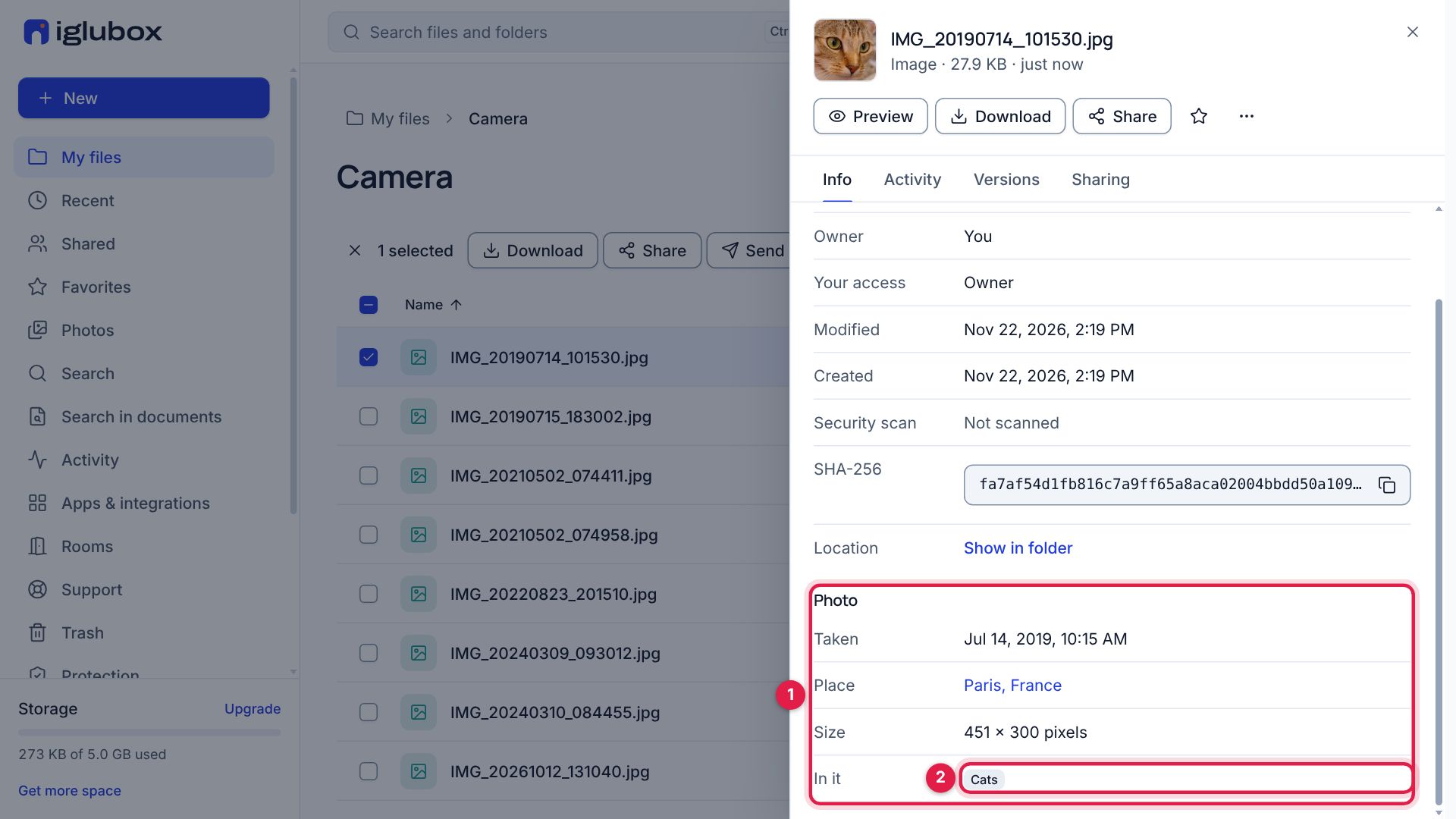
In your files, open the menu of a photo and choose Details. Under Photo you find when and where it was taken and its size (1), and what is in it (2): choose one to see every photo that has it. The text read in a photo is there too.
Where the service also describes new photos with AI, their descriptions are searched as well; you can turn that off for your photos in Settings → AI.