Recordings pile up: the weekly call, an interview, a voice memo, the video of a training. Each of them holds a decision or a figure somebody will need again, and none of them can be searched. You remember that the price was mentioned “somewhere in the middle” and you drag the slider around until you hear it.
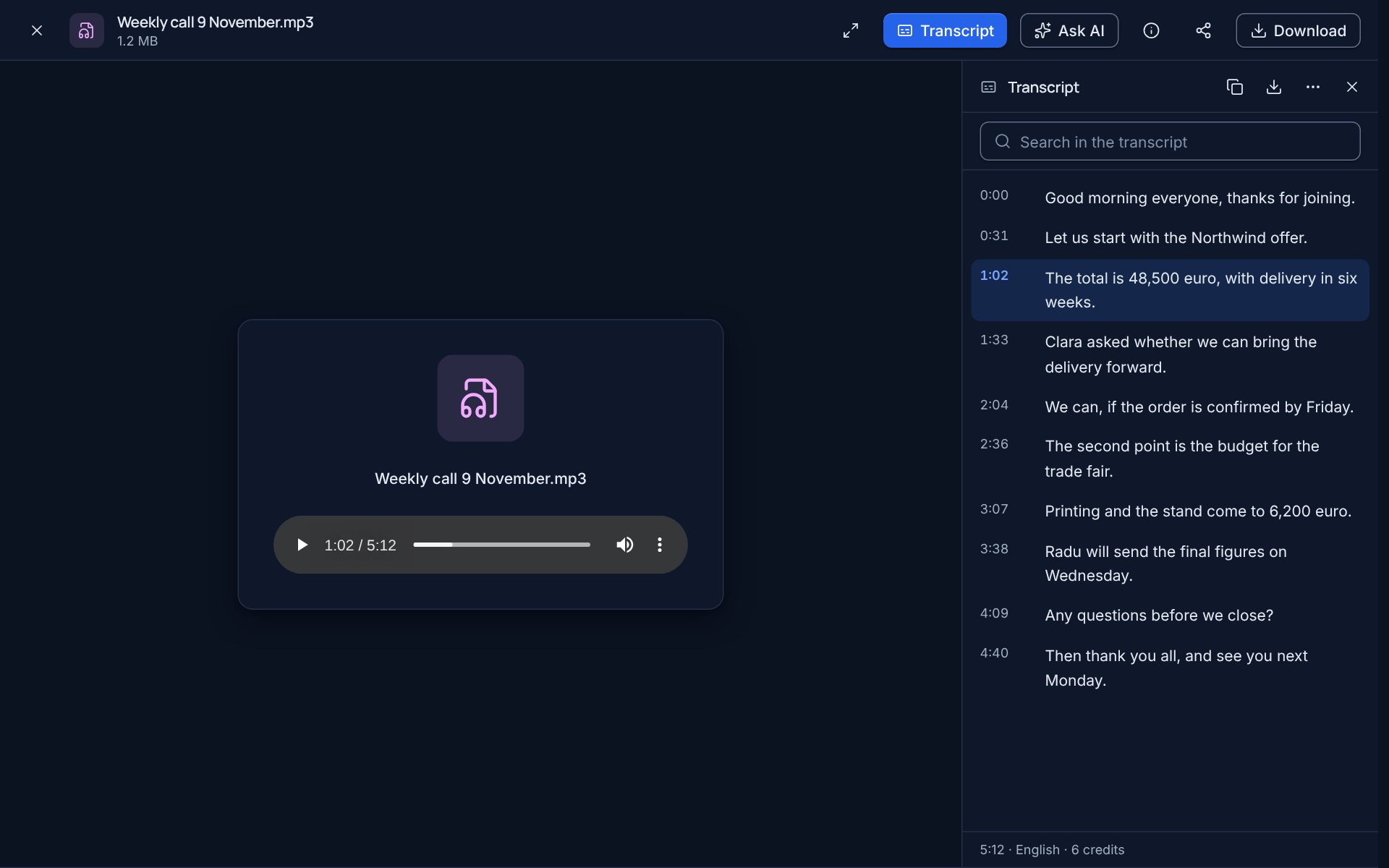
A transcript ends that. Open an audio or video file in the web app, choose Transcript, and the recording is written down.
The pictures below are from the product. The recordings in them were made for the pictures and their words were typed in, not recognised from speech.
You know the cost before you ask
A transcript costs one AI credit for every started minute of the recording. Before anything is sent, the panel says how long the recording is, what the transcript will cost and how many credits you have left. If you know the language, name it: it helps with accents and short recordings.
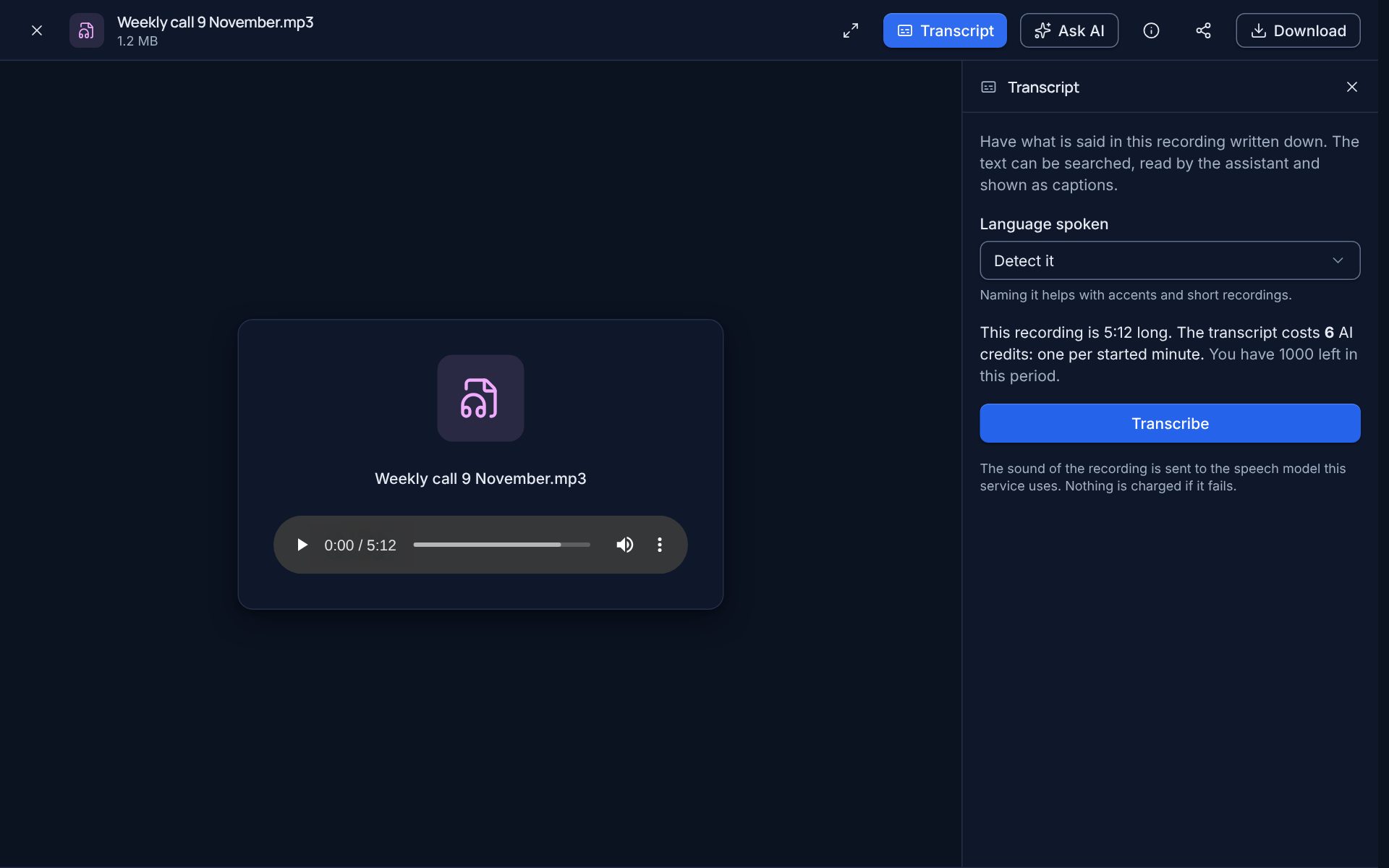
You can close the window while it works. A notification tells you when the transcript is ready. A transcription that fails costs nothing.
Lines that move the player
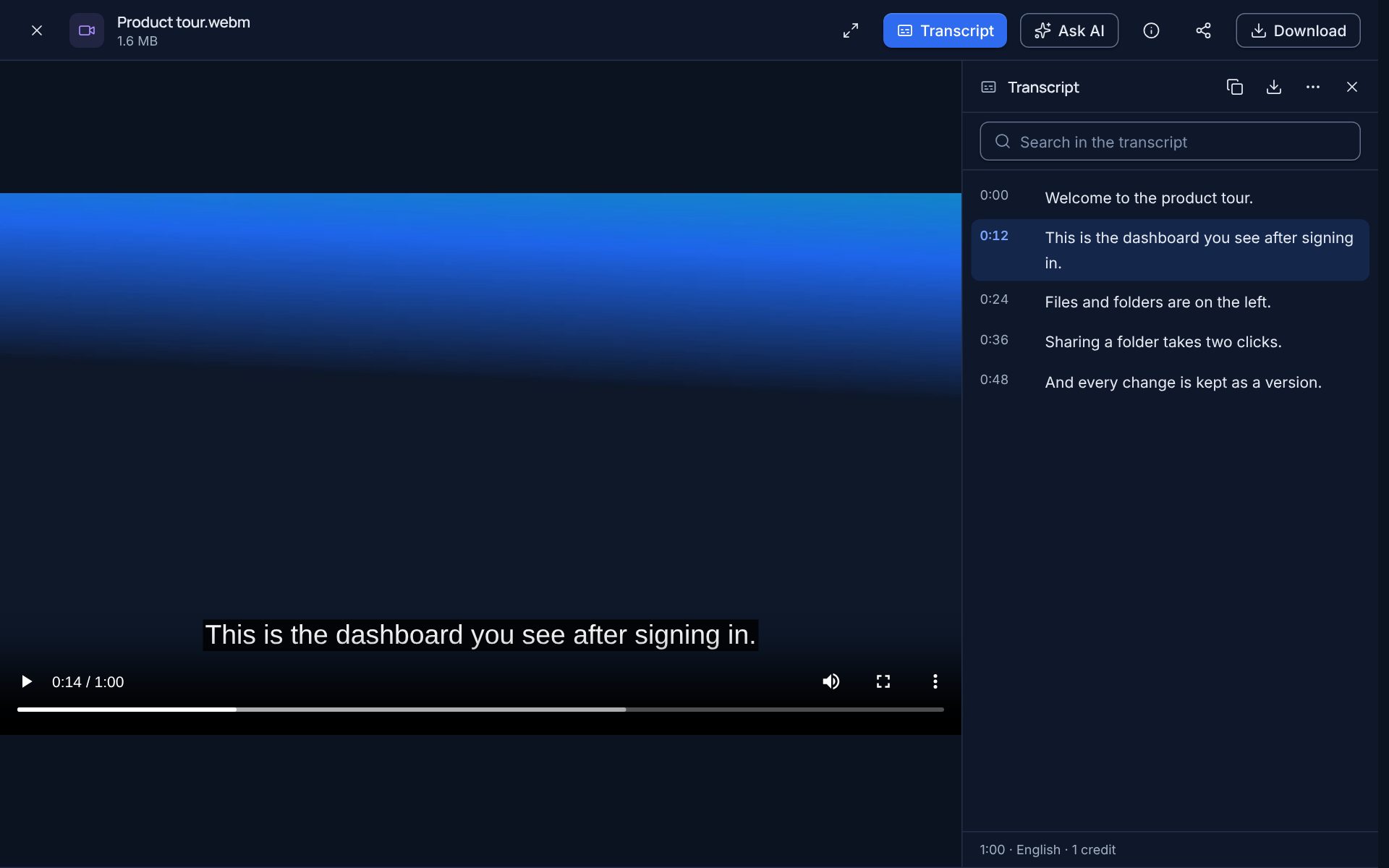
The text comes line by line, each with the time it is said at. Click a line and the player jumps there; while the recording plays, the line being spoken is marked.

Looking for one thing? Type it in the search box of the panel and only the lines that mention it stay:
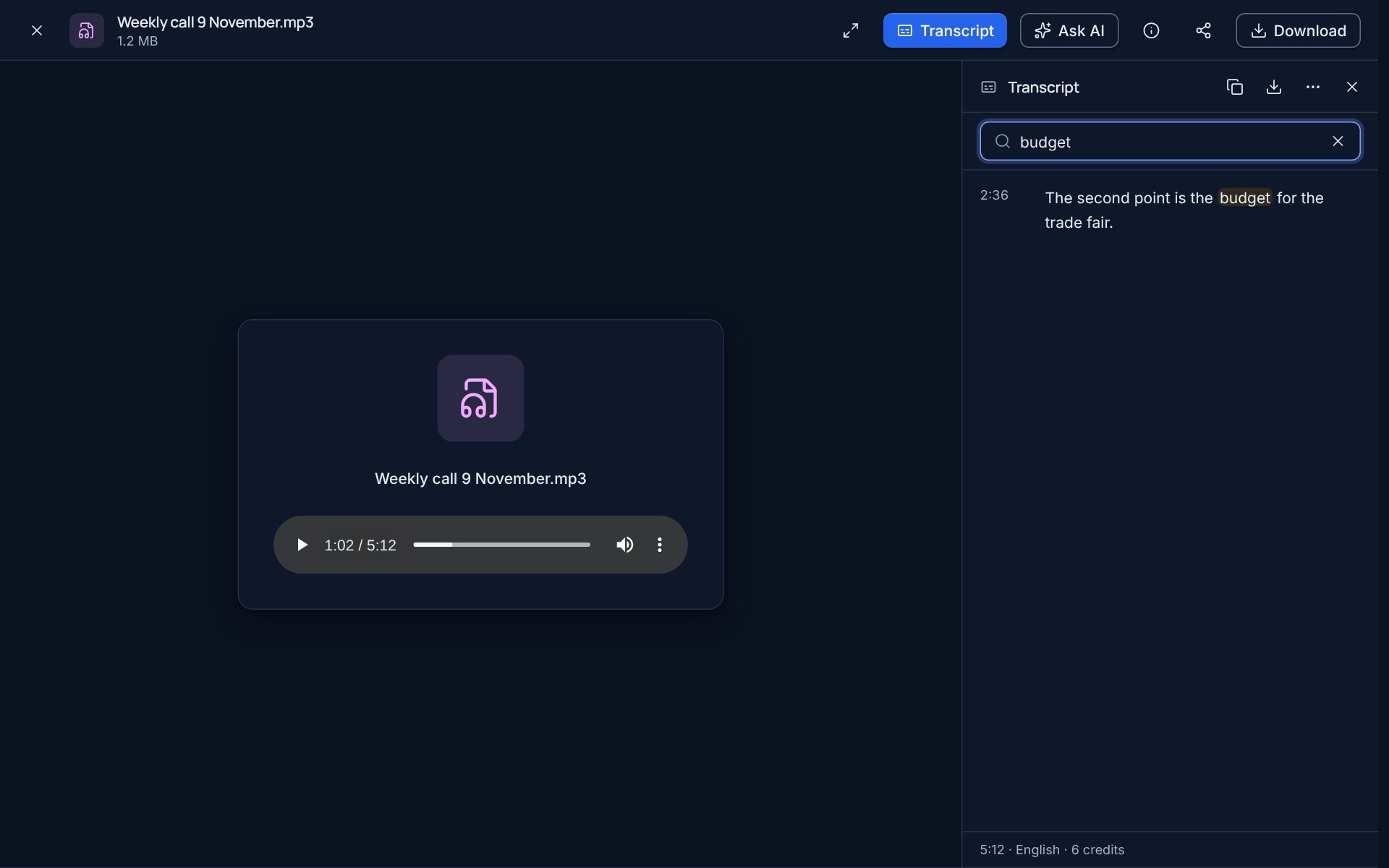
You can copy the whole text, or download it as plain text, as captions (.vtt) or as subtitles (.srt).
Captions on your videos
A video that has a transcript shows it as captions in the player, and the panel works the same way: a line takes the video to that moment.
The assistant can answer from recordings
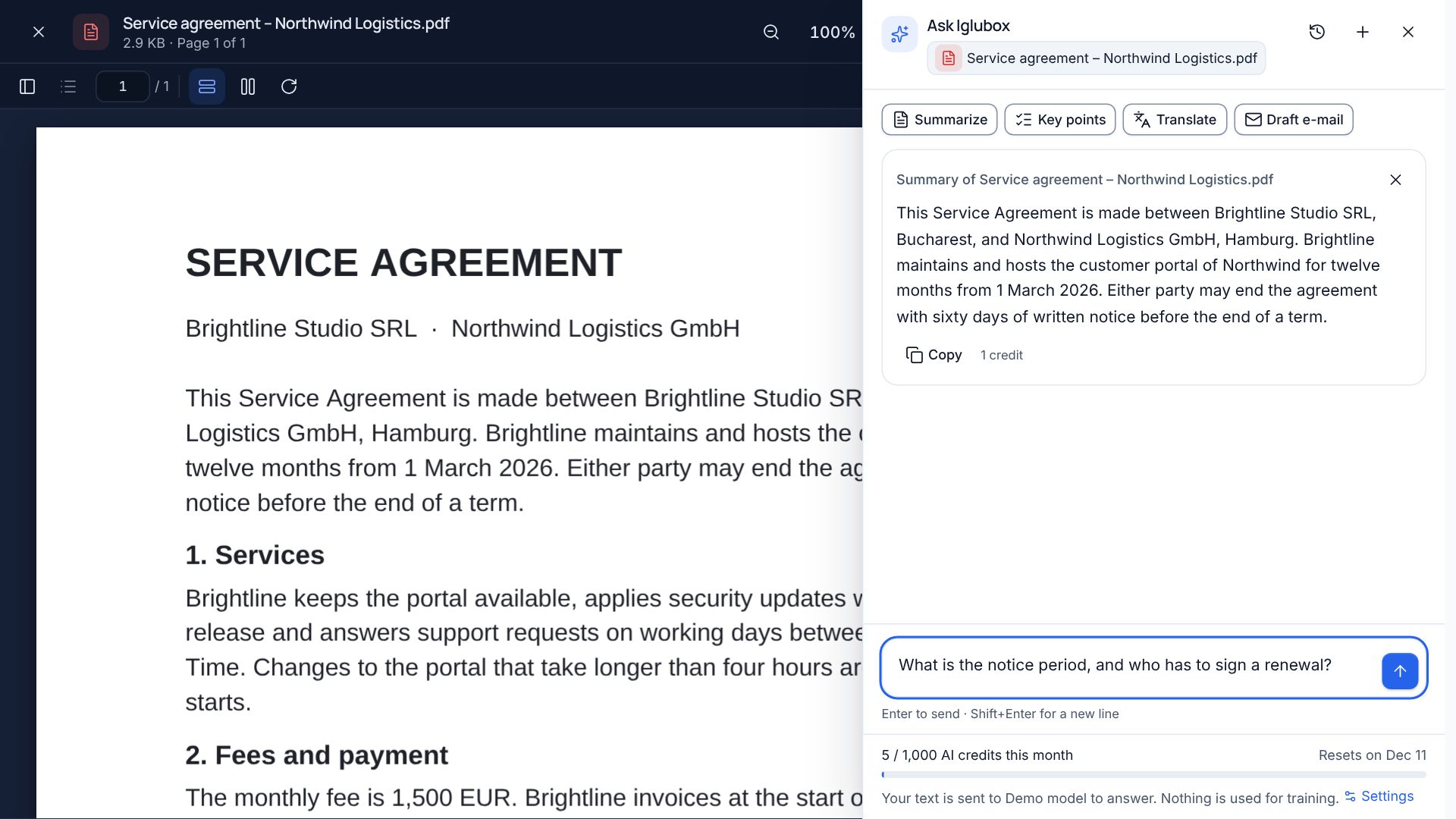
Once a recording has a transcript, it is content like any document. Ask AI on the recording answers from what was said and points to the place in the recording, and search by meaning finds recordings by what is said in them.
Good to know
- It can be wrong. Speech recognition makes mistakes, more of them with names, figures, accents and poor sound. For what matters, click the line and listen.
- What is sent. Only the sound of the recording goes to the speech model, and only when you ask for a transcript. The picture of a video is not sent.
- Who can read it. The transcript belongs to the file: whoever can open the recording can read its transcript, and it is deleted with the file.
- New content, new transcript. If you upload a new version of the recording, the old transcript is marked as made from earlier content, and you can have the new content transcribed.
- Where it is. Transcripts are in the web app. The phone and desktop apps do not show them yet.
Transcripts are available where the service has a speech model set up, on plans that include AI credits. The help center has the details: have a recording transcribed.