Most sites are backed up by the hosting company, onto the same server or the one next to it, for a week or two. That is fine until the day the server is the problem, the account is closed, or the copy you need is from last month.
The Iglubox plugins put a second copy somewhere that is yours: your own storage account, where you decide how long backups are kept and nobody at the hosting company can delete them.
Connect the site with a code
Install the plugin (Plugins → Add New → Upload Plugin in WordPress; the iglubox_backup module in Drupal) and open Tools → Iglubox Backup, or Configuration → System → Iglubox Backup in Drupal. Enter the API address of the service and click Connect.
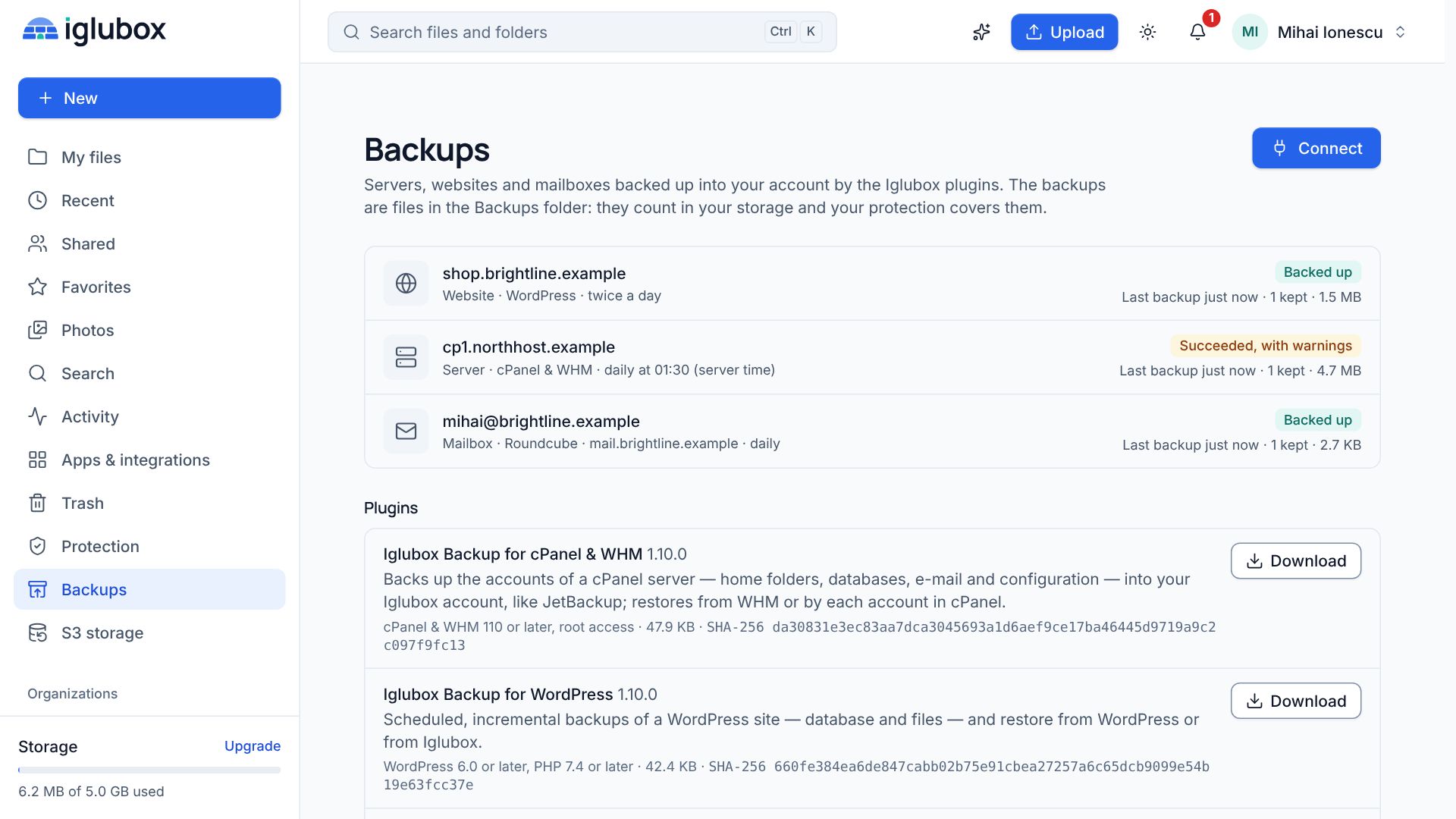
The plugin shows a code. Open Backups → Connect in the Iglubox web app, type it, and you see what is asking and what it will be allowed to do before you approve.
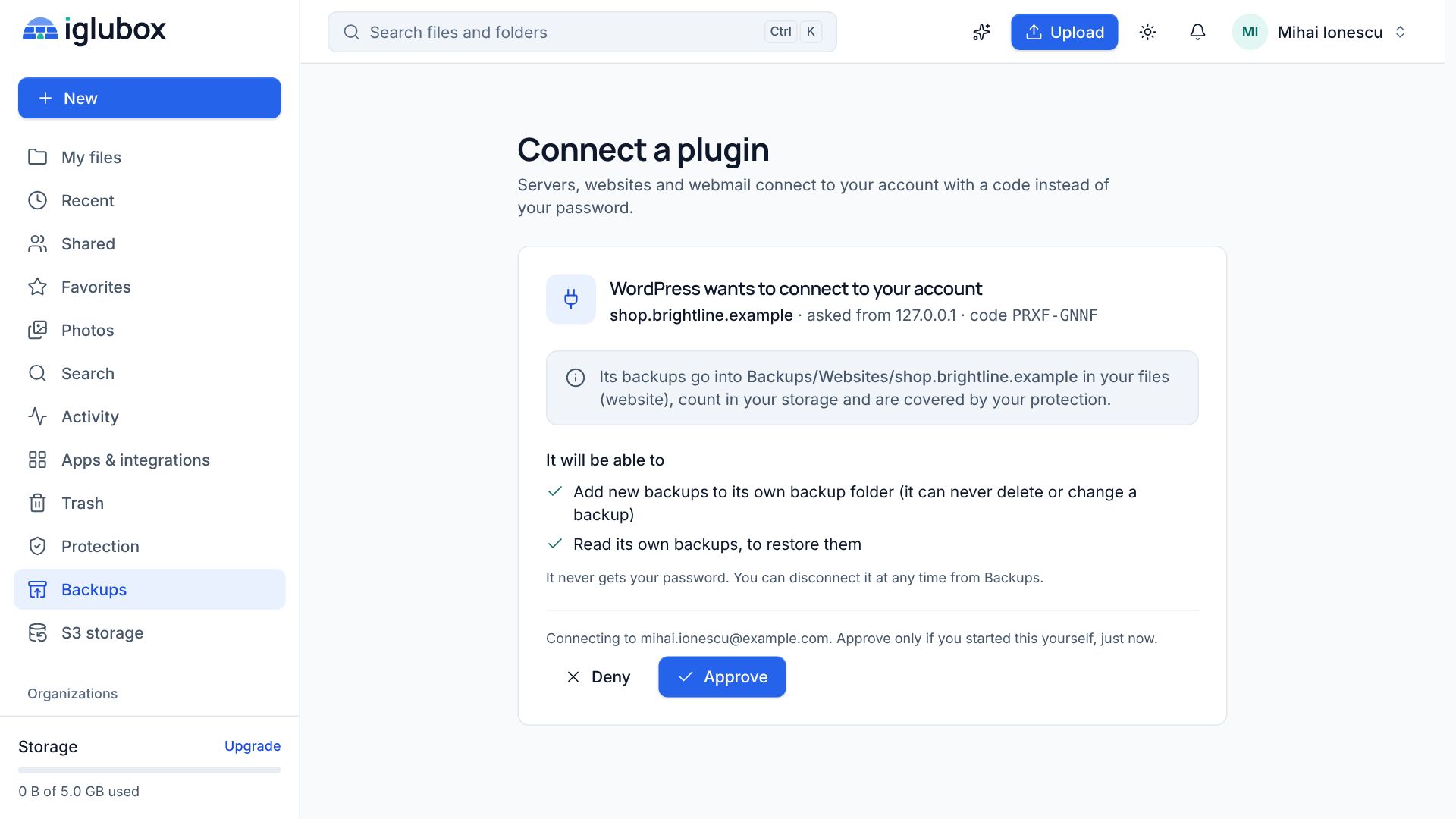
Your password is never typed into the site. The key the plugin receives can add backups to its own folder and read them back to restore. It cannot delete a backup and it cannot see your other files, so a site that gets broken into does not put your account, or its own backups, at risk.
What is backed up, and when
- The database, as a dump made table by table.
- The files:
wp-contentor the whole site in WordPress; public files, private files and, if you want, the code in Drupal. Caches and generated files are left out, and you can add your own patterns.
Choose a schedule — every day, twice a day or every week — or run it from the command line with wp iglubox backup or drush iglubox:backup. The backup works in short steps, so it fits shared hosting where a request may run for half a minute at most.
The first backup sends everything. After that only what changed is sent: files are cut into chunks and a chunk that is already stored is not sent again. Every backup still restores on its own.
Restoring
There are two ways back, for two kinds of bad day.
The site is there but something is wrong. Restore from the plugin: pick a snapshot and it puts the files and the database back in place. WordPress first makes a safety backup of the site as it is now; Drupal switches to maintenance mode while it works.
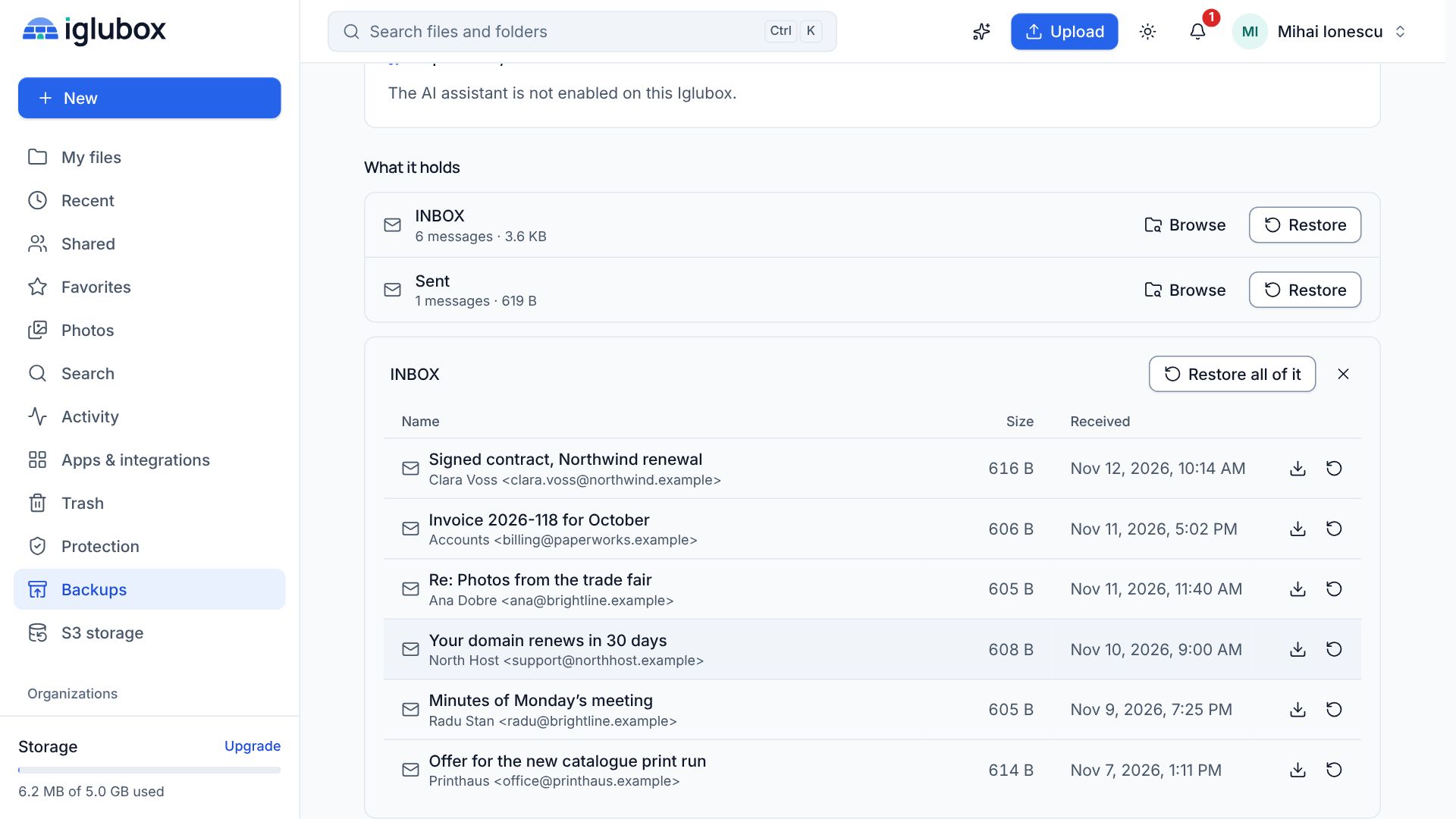
The site is gone, or you only need one thing. Open the backup in the web app. Browse it folder by folder, download a file, a folder or the database dump, or restore a part of it into a new folder of your files.
A warning worth having
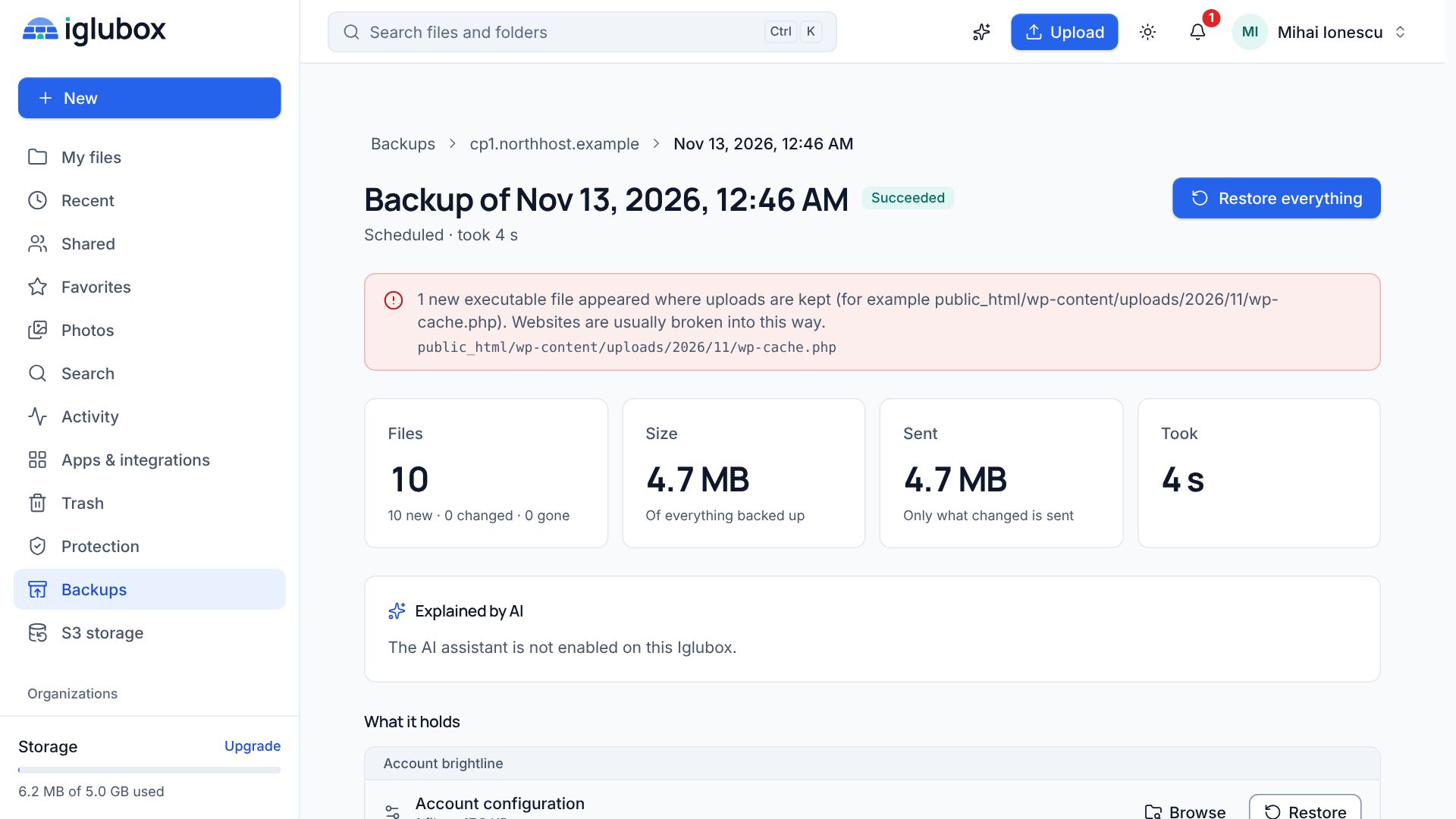
While it packs the files, the plugin notices two things: a script that appeared in the uploads folder since the last backup, and PHP that looks obfuscated. Sites are very often broken into by exactly that route, and the first sign is a file nobody remembers adding. The backup is marked with a warning, and you can be e-mailed.
It is a hint, not a malware scanner: it tells you where to look.
Before you rely on it
Run one backup and one restore on a copy of the site. A backup you have never restored is a hope, not a plan.